Friends, if you enjoy making stylish Hindi-song Reels, the Jumme Ki Raat CapCut Template can save you plenty of editing time. This ready-made edit combines a blurred opening, smooth slow motion, music-based transitions, a body-cutout reveal and cinematic colour treatment. You only have to choose suitable clips, place them in the correct order and preview the result before exporting.
Here you will find two versions, mobile instructions, recording tips and common fixes. Good source clips make a big difference, so preview both versions and choose the edit that suits your footage.
Quick Details
| Item | Details |
|---|---|
| Template name | Jumme Ki Raat CapCut Template |
| Editing style | Hindi-song attitude Reel |
| Main effects | Blur, slow motion, beat transitions, body cutout and cinematic filter |
| Clips to prepare | Around 3–4 clips; confirm the exact count in the preview |
| Best footage | Confident walking, side-look and close-up clips |
| Recommended format | Vertical 9:16 video |
| Skill level | Beginner-friendly |
| App required | Official CapCut mobile app |
What Is a CapCut Template?
A CapCut template is a ready-made editing layout. Its creator has already arranged the timing, transitions, effects, animations and music. When you add your own photos or videos, CapCut places them into those prepared slots and generates the edit automatically.
This is useful when a new Reel style is popular and you do not have time to recreate every beat manually. Explore our Trending Hindi Song CapCut Template collection for more music-based edits, or visit the Trending Reels CapCut Template guide. You still need to check framing, clip order, crop and timing before exporting.
About the Jumme Ki Raat CapCut Template
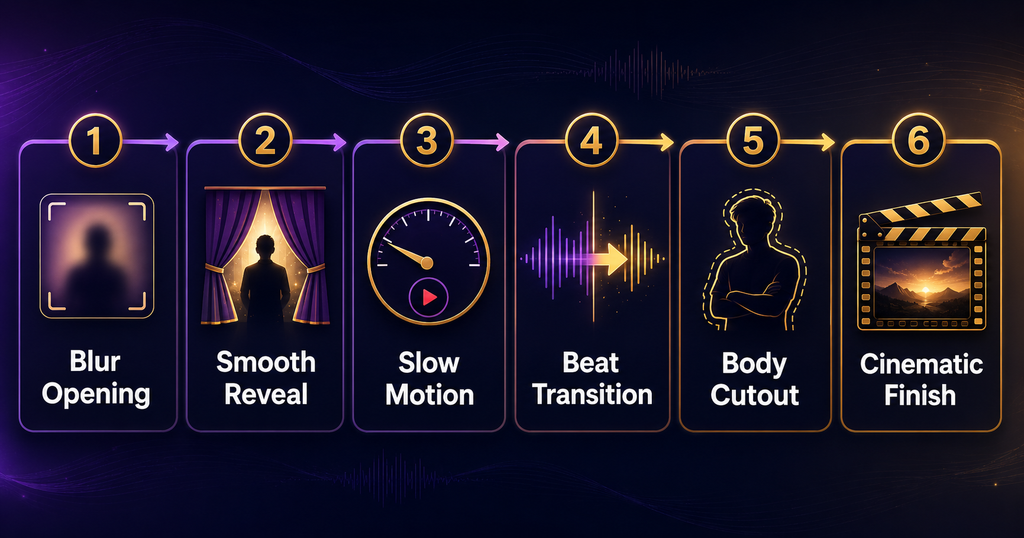
The edit begins with a blur effect that hides the opening clip for a short moment. When the blur ends, the subject appears through a smooth reveal and the footage moves into slow motion. The clips then change according to the song beats, which gives the video an energetic yet polished rhythm.
One of the most eye-catching details is the body-cutout effect. A cutout of the subject from the next shot may appear before the full clip is revealed. This creates a layered transition and makes the entry feel more dramatic. Slow motion continues across the selected shots, while a cinematic filter brings the colours together.
Blur Opening → Smooth Reveal → Slow Motion → Beat Transition → Body Cutout → Cinematic Finish
This style works nicely for walking clips, confident expressions and simple attitude poses. You do not need a costly camera or complicated location. A clean background, good daylight and stable mobile footage are enough for a smart result.
Why Use This Template?
Manual beat-sync editing takes time because every clip change must match the audio. You may also need masks, speed curves and matching filters. A template places these elements on a prepared timeline. Its main benefits are:
- Beat timing, transitions and effects are already arranged.
- You can preview the edit, test two versions and replace a weak shot.
- The result suits Instagram Reels, YouTube Shorts and similar vertical platforms.
A template can improve your workflow, but it cannot guarantee views or virality. Reach also depends on the content, audience, posting time, caption, originality and platform recommendations.
What Kind of Clips Should You Record?
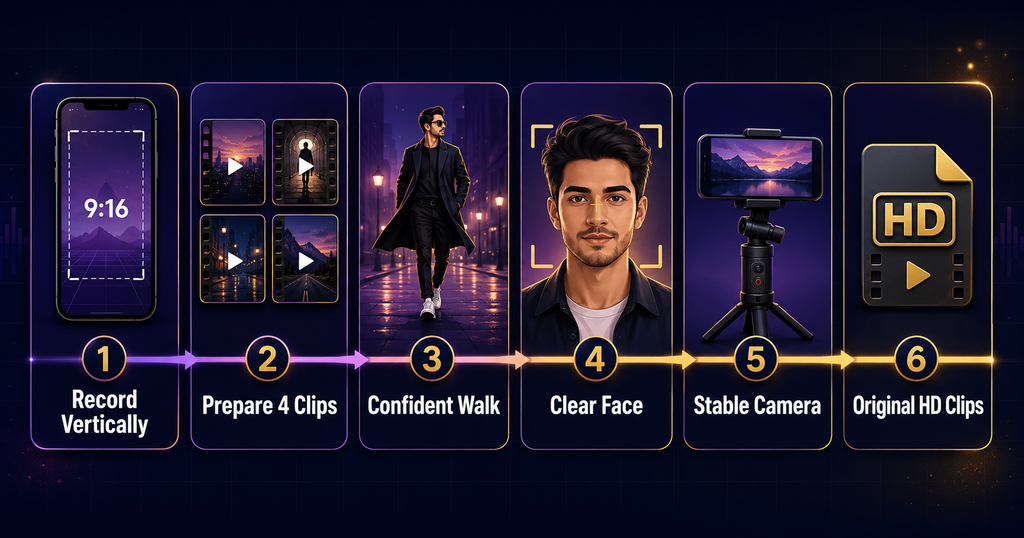
Prepare at least four short clips so you have a spare. A confident walking shot is strong for the opening or final reveal. You can also record a close-up, a side-looking pose and a medium shot with a natural jacket, hair or sunglasses adjustment.
For more pose inspiration, see our Attitude Dialogue CapCut Template article. The Haryanvi Trend CapCut Template guide also contains useful ideas for walking and bike-side clips.
Follow these recording tips:
- Record vertically in a 9:16 frame.
- Shoot in daylight or stand near a bright, soft light source.
- Keep your face and body clearly separated from the background; this helps the cutout effect.
- Ask a friend to hold the phone steadily, or use a tripod.
- Record each action for a few seconds longer than required.
- Use the original HD clips instead of videos downloaded from WhatsApp or another social app.
Do not add slow motion, filters or transitions before importing. The template already applies its own treatment, and pre-edited footage can look over-processed.
Jumme Ki Raat CapCut Template Links
Two versions are available below. Watch each preview because the media slots, timing and effects may differ. Choose the version that matches your clips.
Version 1: Blur, Cutout and Slow-Motion Edit

This is the newer supplied version and is a good first option for the blur-to-reveal attitude style. Confirm the required clip count on its preview screen.
Version 2: Alternative Jumme Ki Raat Edit

Use this alternative if you prefer its timing or if the first version is unavailable in your region. The arrangement can change when a template creator updates or republishes an edit.
Note: Template availability can vary by country, device, app version and creator status. If a link does not open, update the official CapCut app and try the alternative version. RoyEditors is not affiliated with CapCut. The template, app name, music, logos and trademarks belong to their respective owners. We share public template links only for users’ convenience.
How to Use the Jumme Ki Raat CapCut Template
Friends, once your clips are ready, the actual process is quite simple:
- Install or update the official CapCut app on your phone.
- Open one of the template links given above on the same mobile device.
- If the browser asks for permission, choose to open the link in CapCut.
- Watch the full preview and check how many clips the version requires.
- Tap Use template.
- Select your best original clips from the gallery in the requested order.
- Tap Preview and wait while CapCut applies the effects.
- Use Edit, Replace or Crop if a subject is poorly framed.
- Review every transition, especially the body-cutout reveal and final pose.
- Tap Export, choose a suitable resolution and save the finished video.
Button names can vary slightly by app version or region. If the link opens a web preview instead of the app, look for an option such as Use template in CapCut.
Best Order for Your Clips
Clip order matters because the opening and final pose often receive the strongest effects. Try this arrangement:
- Opening: a steady walking or entry shot with enough space around the body.
- Second clip: a medium shot with a side look or hand movement.
- Third clip: a clear close-up with a confident expression.
- Final clip: your strongest full-body pose or walking finish.
For three slots, combine the second and third ideas. For more slots, add alternate angles. Preview after each replacement.
How to Customise the Edit
Some app versions provide Edit more after the template is applied. Use it to replace a clip, change the crop, balance brightness or add short text. Keep customisation light: extra flashes and stickers can hide the clean beat sync. Keep text away from the top and bottom interface areas, and reduce filter intensity if skin tones become too dark.
Music rights can vary across platforms and regions. If you plan to publish commercially, confirm that you have permission to use the audio. A platform may mute, restrict or remove a video even when its visuals were created with a public template.
Recommended Export Settings
For most Reels and Shorts, export in 1080p with the vertical frame. 30 fps is usually sufficient; choose 60 fps only when your source clips support it and the preview is smooth. Watch the saved video once and check its audio, cutout and crop before posting.
Common Problems and Easy Fixes
The template link does not open
Use a phone with CapCut installed. Update the app, check your connection and try the second version. Availability may be region-dependent.
The “Use template” option is missing
Use the official app, sign in if required, restart CapCut and reopen the link. The feature may be unavailable for your region or app build.
The template asks for a different number of clips
Always follow the count shown in the live preview. Template versions can have different media slots, even when their names are similar.
My clips appear in the wrong order
Replace them one slot at a time. Use a walking shot first, a close-up in the middle and the strongest attitude pose at the end.
The body cutout looks untidy
Use good light and clear separation between subject and background. Avoid crowds, motion blur and clothing that blends into the scene.
Slow motion looks choppy
Use original footage recorded at a higher frame rate if supported. Compressed or forwarded clips may not slow down cleanly.
The exported video looks blurry
Use original HD clips, select 1080p while exporting and make sure you have enough free storage. Do not use screen recordings or social-media downloads as source footage.
Export stops or fails
Close unused apps, free some storage, restart the phone and try again. A stable connection may be needed for template resources to load before export.
The audio is muted after posting
The destination platform may restrict the song because of licensing rules. Use audio available in that platform’s licensed music library or replace it with music you are authorised to use.
Privacy, Safety and Copyright
Use clips you own or have permission to share. Take consent before showing other people. Hide vehicle numbers, addresses, identity cards and live-location clues. Stay away from traffic and never pose while driving.
This page is an independent tutorial and is not sponsored by or affiliated with CapCut. Template availability and features can change. CapCut and all related trademarks belong to their respective owners. The song and other media may have separate rights holders; users are responsible for checking permissions before publishing or monetising a video.
Frequently Asked Questions
Is the Jumme Ki Raat CapCut Template free?
Public templates can generally be previewed and used in CapCut, but certain app features, effects or export options may vary by account, app version or region. Check the app before final export.
How many clips do I need?
Prepare three to four usable clips, plus one spare. The live preview is the final authority because each version can request a different number of media slots.
Which clips suit this edit best?
Confident walking, side-look, close-up and final-pose videos work well. Clear backgrounds also improve the body-cutout effect.
Can I use photos instead of videos?
Only if the selected template permits photos in its media slots. For smooth slow motion and walking transitions, video clips usually produce a better result.
Why can I not find the template in search?
Search results can vary with region, language, app version and template availability. Use the direct links above, update the app and try the alternative version.
Can I remove the watermark?
Export choices can vary between versions and regions. Use only the options officially shown inside CapCut and do not use unauthorised watermark-removal tools.
Can I customise the template after applying it?
Yes, where CapCut provides editing controls. You can replace or crop clips and make light adjustments. Extensive changes may require opening the result in the main editor.
Will this template make my Reel viral?
No template can guarantee reach. It can help you create a trend-style edit quickly, but performance depends on originality, audience response, posting strategy and platform recommendations.
Conclusion
The Jumme Ki Raat CapCut Template is a convenient option for creating a Hindi attitude Reel with blur, slow motion, music-based transitions, a body cutout and cinematic colour. Record clean vertical footage, compare both versions, arrange your strongest clips carefully and review the cutout before exporting.
If one version does not open or its timing does not suit your footage, try the alternative link instead. Most importantly, use original clips, respect music and privacy rights, and treat the template as a creative starting point rather than a promise of virality.

Renu Mishra Roy is the founder and editor of Roy Editors. She writes about trending CapCut templates, VN codes, and AI photo editing, testing each template herself before publishing so readers get steps that actually work. Her guides focus on helping creators make clean, viral-style Reels and Shorts without wasting time on complicated editing.