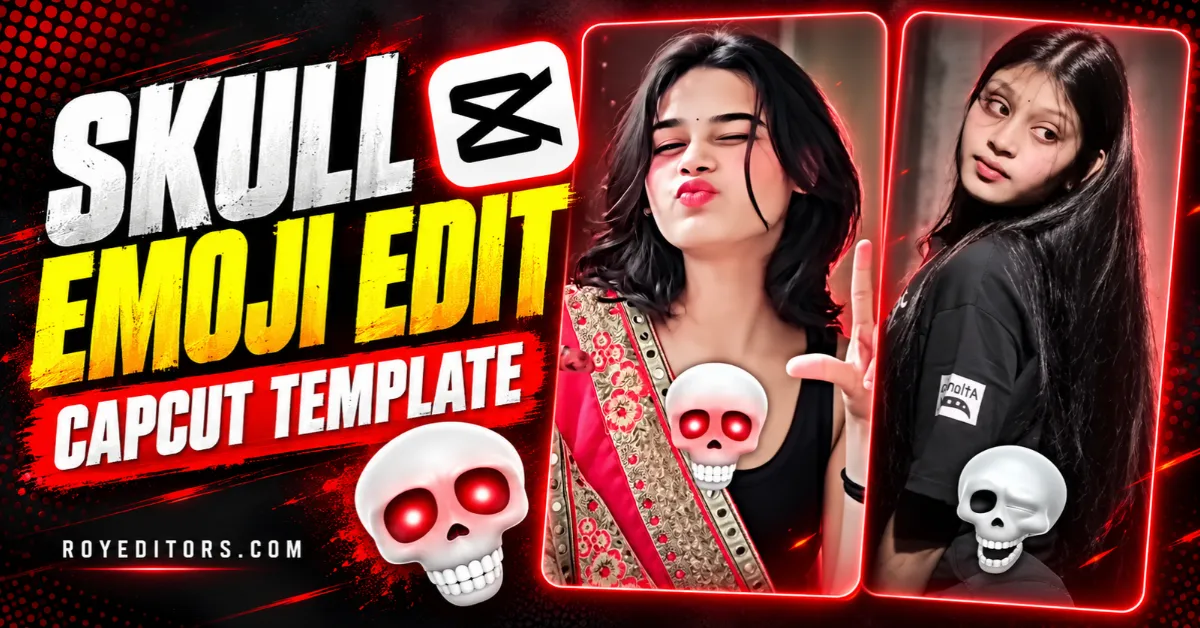
Want to give your video a dramatic skull emoji finish? The Skull Emoji Edit CapCut Template gives you a starting point without building the entire edit yourself.
Choose a template, add your clips, and preview the result. It is a simple way to turn a funny reaction, gaming moment, or unexpected ending into a short emoji edit.
Below are official CapCut template links, instructions for using them, and tips to help your video look better.
Explore more editing styles in our CapCut Templates collection.
What Is the Skull Emoji Edit CapCut Template?
A Skull Emoji Edit CapCut Template is a ready-made editing layout built around the skull emoji style. Depending on the version, the edit may include emoji overlays, transitions, music, or other effects.
The idea is to make a particular moment stand out. You might use it when a friend gives a funny reaction, a game takes an unexpected turn, or your clip ends with a surprising reveal.
There are several templates with similar names, so preview each one before choosing.
Skull Emoji Edit CapCut Template Links
Here are two options listed on CapCut’s official website. Both pages list two required clips and a square 1:1 aspect ratio.
| Template | Creator | Media required | Format |
|---|---|---|---|
| Skull Emoji edit | JCT | 2 clips | 1:1 square |
| Skull emoji edit | neyxdri | 2 clips | 1:1 square |
Template 1: Skull Emoji Edit by JCT
Open the template page and check the preview before adding your media.

Template 2: Skull Emoji Edit by neyxdri
Try this alternative and choose whichever preview suits your footage.

These links lead to official template pages. Availability and editing options may vary by region, device, and app version.
How to Use the Skull Emoji Edit CapCut Template
The exact buttons may differ slightly, but you can generally follow these steps:
- Open a template link: Choose one of the official links above on your phone.
- Continue in CapCut: If the page offers an option to open or use the template, tap it.
- Select your media: Add the photos or videos accepted by the template.
- Adjust the selection: Choose the part of each clip you want to include, where the template allows.
- Preview the edit: Check the timing, cropping, emoji placement, and audio.
- Export your video: Review any paid-feature notices, then choose an available export option.
- Watch the saved version: Check the final video before uploading it to your preferred platform.
Tip: Keep the important action near the centre of your footage. This helps prevent faces or key details from being cropped out.
Video Ideas for a Skull Emoji Edit
You do not need complicated footage. A clear setup followed by an unexpected moment can work well.
Funny Reaction
Start with a normal moment, then use a surprised expression or funny response for the reveal.
Caption idea: “Bro realised it too late 💀”
Gaming Moment
Use a short gameplay clip with an unexpected result. Keep the action easy to follow so viewers understand the ending.
Caption idea: “I thought I had this 💀”
Before-and-After Reveal
Try an outfit change, drawing, room update, or another visual transformation. Choose two clips with a clear difference.
Caption idea: “That changed quickly 💀”
Friends’ Challenge
Use footage from a harmless challenge or friendly competition. Make the reaction the main focus.
Caption idea: “Confidence before the result 💀”
Tips for a Better Skull Emoji Edit
Start Close to the Action
Trim unnecessary footage at the beginning. Viewers should understand the setup quickly.
Choose Clear Footage
Use a clip where the subject is easy to see. Dark or blurry footage can make the final effect harder to follow.
Check the Crop
The linked templates use a square format. Preview carefully if your original footage is vertical or horizontal.
Keep Text Short
A short caption is easier to read during a fast edit. Avoid covering the face, emoji, or main action.
Preview With Sound
Watch once with sound to check the timing. Then watch without sound to see whether the visual joke still makes sense.
Skull Emoji CapCut Template Not Working?
If a template does not open or load, try these basic checks:
- Open the link in your regular browser: A social app’s built-in browser may handle the link differently.
- Update CapCut: Check your device’s official app store for an available update.
- Check your connection: A weak connection can interrupt loading.
- Restart the app: Close CapCut and try the link again.
- Try the other template: One version may be unavailable while another still opens.
- Check your storage: Make sure your device has space to save the exported video.
If CapCut says the template is unavailable, choose another template offered in your region.
You can also turn your favourite photos into a stylish video with the Jhalak Dikhla Ja CapCut Template.
Frequently Asked Questions
How many clips do I need?
Both templates linked above list two required clips. Check the template screen for the exact media requirements before starting.
Is the Skull Emoji Edit CapCut Template free?
Check inside CapCut before exporting. Do not assume every template, effect, or export option is free.
Can I use photos instead of videos?
That depends on the selected template. The media selection screen will show which files it accepts.
Can I make a vertical version?
The linked templates are listed as square. If your editing workflow allows resizing afterwards, preview the new crop carefully before saving.
Will this template make my video viral?
No template guarantees views. Your footage, opening moment, timing, and audience all affect how people respond.
Can I change the emoji or music?
Only if the selected template makes those elements editable. Check the available controls after loading your media.
Create Your Skull Emoji Edit
Choose a Skull Emoji Edit CapCut Template above, add your clips, and preview the result. Focus on one clear moment, keep the caption short, and check the crop before exporting.
Visit Roy Editors for more CapCut templates and editing guides.

Renu Mishra Roy is the founder and editor of Roy Editors. She writes about trending CapCut templates, VN codes, and AI photo editing, testing each template herself before publishing so readers get steps that actually work. Her guides focus on helping creators make clean, viral-style Reels and Shorts without wasting time on complicated editing.