The Lord Krishna CapCut Template is becoming popular among Indian Instagram creators who want to make beautiful devotional transformation reels. In this viral edit, an ordinary photo or video frame changes into a Shri Krishna-inspired look with blue skin, a golden-yellow dhoti, traditional jewellery, a mukut, a peacock feather and a flute. Smooth transitions, slow motion and music make the final video attractive and suitable for Instagram Reels, YouTube Shorts and WhatsApp Status.
If you have seen this Krishna transformation trend and want to create your own version, this guide will help you complete the process from beginning to end. You will learn how the template works, what type of clip gives the best result, how to create a realistic Krishna AI image, how to arrange the photos in CapCut, and how to use the alternative VN code method. We have also included practical solutions for common template, QR-code and export problems.
This edit can be especially meaningful for Janmashtami posts, Krishna bhakti reels, temple-event videos and other devotional content. However, the image and music should always be used with respect because Shri Krishna is worshipped by millions of devotees across India and around the world.
What Is the Lord Krishna CapCut Template?
The Lord Krishna CapCut Template is a ready-made video project containing transitions, timing, slow-motion effects and music synchronization. Instead of building every effect manually, you open the template, add your required photos or clips and let CapCut arrange them according to the prepared sequence.
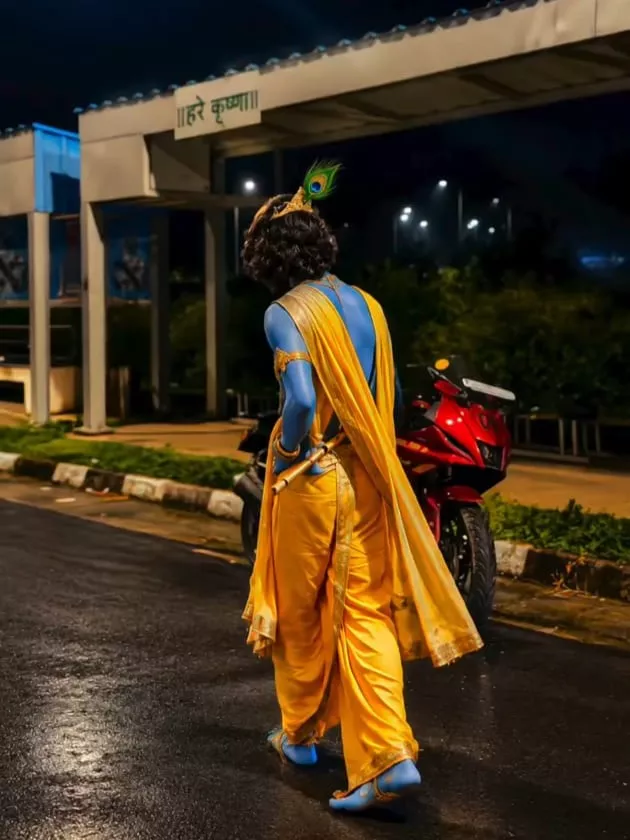
The most important feature of this trend is the transformation from a normal person into a Krishna-inspired appearance. The original photo and the AI-edited version are normally placed one after another. When the transition plays, it looks as if the person has changed into Shri Krishna for a few moments. Some versions repeat this effect several times or include another slow-motion pose at the end.
The exact number of media slots, video duration and audio may differ because creators can upload different versions of the trend. Always check the preview inside the official CapCut app before selecting your media.
What Does the Viral Krishna Edit Look Like?
The viral Krishna edit usually begins with a person walking, turning back or posing in front of the camera. The movement slows down as the music reaches an important beat. At that moment, the normal appearance changes into an AI-created Krishna look. The blue complexion, traditional dhoti, gold ornaments, mukut, peacock feather and flute create the main devotional effect.
In some versions, the Krishna image appears and disappears in rhythm with the song. Other versions alternate between the original image and the generated image more than once. A separate Radha Rani variation may also be available for creators who want to produce a graceful Radha-inspired transformation reel.
Lord Krishna CapCut Template Details
| Detail | Information |
|---|---|
| Template name | Lord Krishna Edit CapCut Template |
| Editing style | AI devotional transformation |
| Required media | Original and AI-generated photos or clips |
| Recommended format | 9:16 vertical |
| Recommended export | 1080p |
| Suitable platforms | Instagram Reels, YouTube Shorts, Facebook and WhatsApp Status |
| Alternative method | Lord Krishna VN code |
| Best occasions | Janmashtami, devotional posts and Krishna bhakti reels |
Use the Lord Krishna CapCut Template Link
Use the button below to open the template page. It should take you to a preview where you can check the effects, number of media slots and duration before beginning the edit.
If the link opens in a browser, choose the option to continue in the official CapCut application. The template may not be available in every region, and it can also be changed or removed by its original creator. Therefore, avoid promising that a third-party template link will always remain active.
Disclosure: This website is not affiliated with CapCut. CapCut, its logo and related trademarks belong to their respective owners. The template button should lead to a publicly shared template in the official app and is provided only for users’ convenience.
Radha Rani CapCut Template
A Radha Rani version of this trend may also be available. It follows a similar photo-transformation concept but changes the person into a Radha-inspired traditional look. The generated image may include an elegant lehenga or saree, traditional jewellery, floral details and a graceful devotional appearance.
Creators can use the Lord Krishna and Radha Rani variations separately or combine them for a Radha-Krishna reel. Make sure the costumes, visual details and overall presentation remain respectful.
What You Need Before Creating the Video
Before opening the template, prepare a clear original photo or a short vertical video. You will also need an AI-generated Krishna version of the same frame. Install or update CapCut, keep a stable internet connection and confirm that your phone has enough free storage for previewing and exporting the project.
The original and generated images should have the same dimensions, pose, framing and background. When these elements match, the transformation looks much smoother. If the AI tool changes the camera angle, facial identity or body position, the transition may appear like two unrelated images instead of one person transforming.
What Kind of Clip Should You Record?
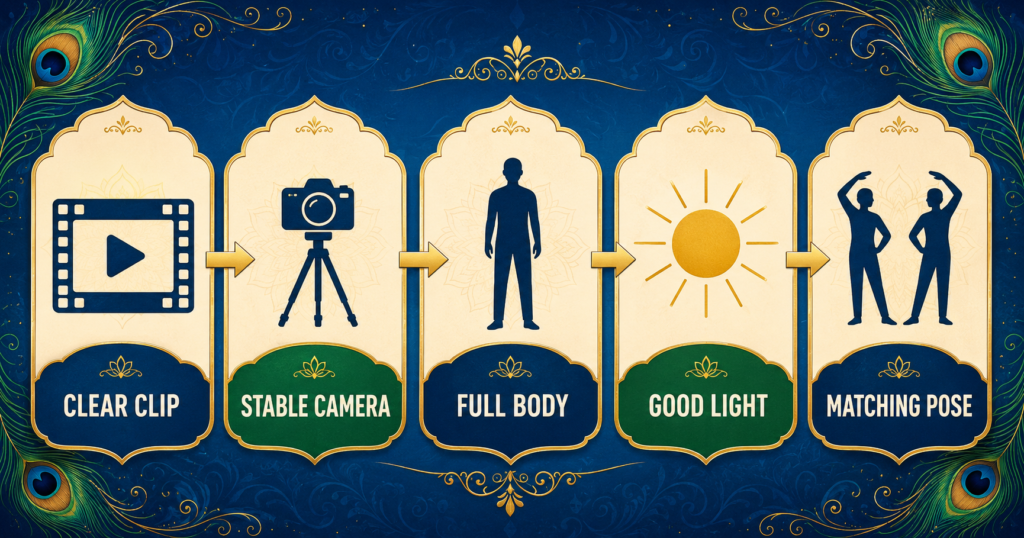
A slow walking or turning-back clip usually works well for this trend. You can walk toward the camera, move away from it or pause in a simple pose. A dancing or lip-syncing clip may also work, but quick movements can make it harder to generate a matching AI frame.
Record vertically in the 9:16 format because this ratio fits Instagram Reels and YouTube Shorts. Use good daylight or soft indoor lighting, keep the camera stable and ensure that your face and body are clearly visible. A simple background can help the AI tool preserve the scene. If you want the generated image to include bare feet and a full Krishna costume, capture the complete body without cutting off the legs.
How to Capture the Correct Video Frame
Play your recorded clip and pause it at the point where you want the Krishna transformation to appear. Choose a sharp frame without motion blur. Take a full-resolution screenshot, or export the frame through a video editor if that option provides better quality.
Do not crop or rotate the screenshot unnecessarily. The background, pose and framing of this image will become the base for the AI version. Keep the original screenshot safely because you will need to add both the normal image and the transformed image to the template.
How to Create a Lord Krishna AI Image
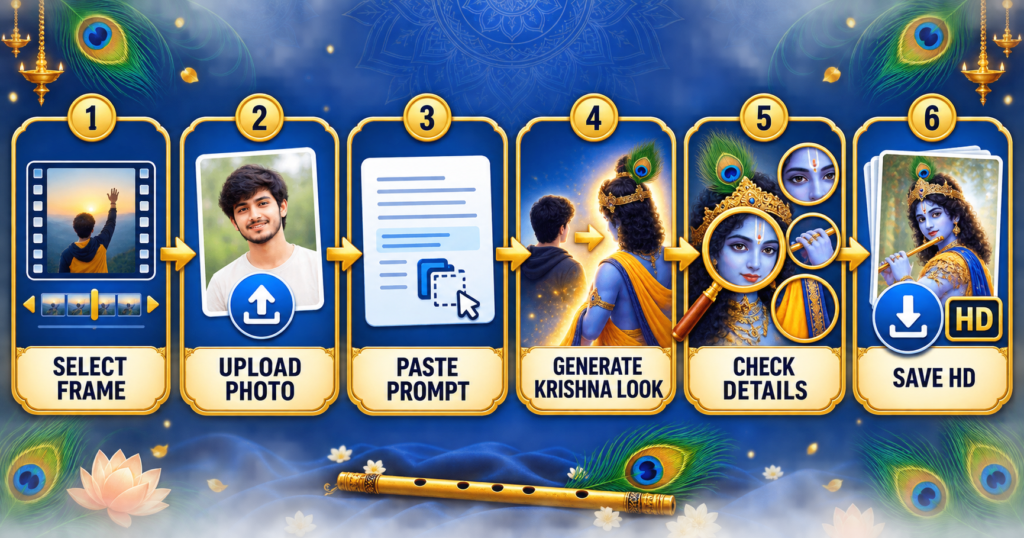
Open an AI image editor that accepts reference images and upload your selected screenshot. Paste the prompt provided below and ask the tool to edit the uploaded photo rather than generate a completely new scene. The tool should retain the person’s identity, pose, facial expression, background and camera angle while changing only the skin tone, clothing and Krishna-inspired accessories.
After receiving the result, inspect the face, hands, fingers, feet, flute, mukut and peacock feather carefully. AI tools sometimes produce distorted details. Regenerate the image if the person no longer looks like the original subject or if the body parts appear unnatural. Save only the best high-quality version.
Lord Krishna AI Photo Editing Prompt
Only upload a photo that belongs to you or that you have permission to edit. Do not use another person’s image without consent, and do not present an AI-generated transformation as genuine religious or historical footage.
How to Use the Lord Krishna CapCut Template
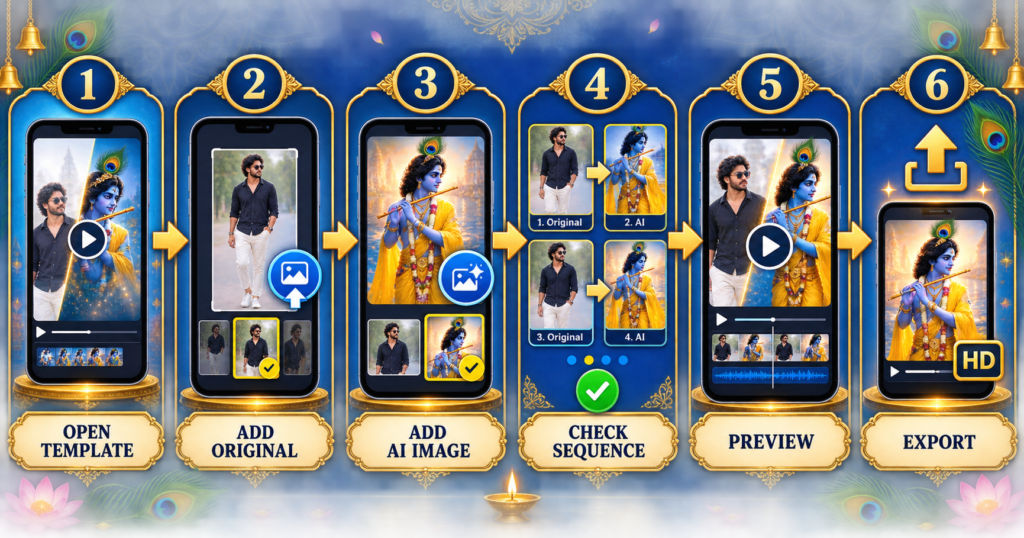
First, install or update CapCut on your mobile device. Tap the template button in this article and allow the page to open in the official app. Watch the complete preview before tapping Use Template. This will show you how many images or clips the selected version requires.
Choose your original photo for the first suitable slot and the AI-generated Krishna image for the following slot. If the template contains additional transformation positions, continue adding the normal and AI versions in the order shown in the preview. Tap Next or Preview, wait for the effects to process and watch the complete video.
Check whether the transformation matches the beat and whether the images have been placed in the correct order. Replace any incorrectly cropped photo before exporting. Once the edit looks right, choose a high-quality export setting and save the video to your device.
Correct Order for Adding Photos
The commonly used arrangement is:
Original Photo → Krishna AI Photo → Original Photo → Krishna AI Photo
However, do not add extra copies unless the selected template requests them. Different versions can have different numbers of placeholders. Follow the order visible in the template preview instead of relying on a fixed number.
Download Lord Krishna VN Code
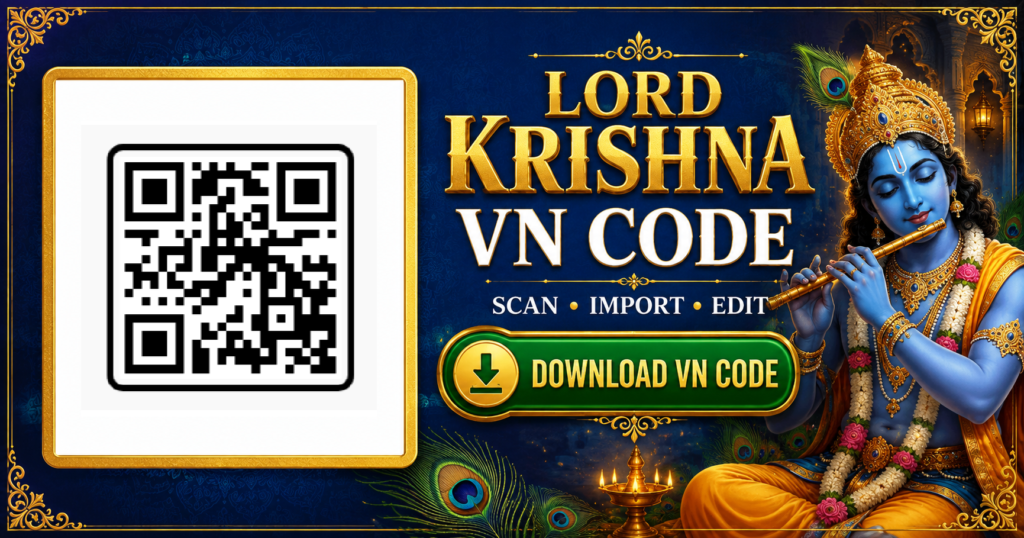
If CapCut is unavailable in your region or you prefer more control over the timeline, you can try the VN Video Editor method. The QR image placed below must be the actual working project code, not a decorative or sample QR graphic.
How to Use the Lord Krishna VN Code
Save the QR-code image in its original quality and install or update VN Video Editor. Open the scanner or project-code import option in VN, then select the saved code from your gallery. Allow the app to load the shared project.
Once the project opens, replace the sample media with your own files. Add the original image to the first corresponding position and the AI Krishna image to the second. Continue according to the timeline, preview the transitions and adjust the crop if needed. Finally, export the completed video in HD.
If the QR code does not scan, avoid taking a compressed screenshot from a social-media app. Download the original image, increase your screen brightness if scanning from another device, and make sure the complete QR pattern is visible.
CapCut Template vs VN Code
| Feature | CapCut Template | VN Code |
| Setup | Quick and mostly automatic | Requires project import |
| Best for | Beginners and fast edits | Users wanting more timeline control |
| Media placement | Guided template slots | Manual project replacement |
| Customization | Depends on the template | Usually offers more editing control |
| Availability | May be restricted by region | Requires a valid working VN code |
Choose CapCut if you want the fastest method. Choose VN when you want to inspect or adjust the project timeline more closely. The final quality depends more on your source images and correct media order than on the app alone.
Best Export Settings for Instagram Reels
For a clear vertical reel, use a 9:16 aspect ratio and export at 1080 × 1920 pixels. A frame rate of 30 FPS works for most source clips, although matching the original recording can prevent unnecessary conversion. Select high quality and MP4 where available.
Watch the exported file once before uploading it. Check the image crop, transition timing, audio, text and ending screen. Repeatedly sending the video through messaging applications before posting can reduce its quality, so upload the original exported file whenever possible.
How to Remove the CapCut Ending
Some CapCut projects add an ending card. If the application offers an official option such as Export without ending, select it before saving. If that option is not available, you may trim the ending from your own exported video where permitted. Do not remove another creator’s branding from content that you do not own.
Lord Krishna CapCut Template Not Working
Template Link Does Not Open
Update CapCut and try opening the link again through the official application. If the browser asks which app to use, select CapCut. A broken or removed template cannot be repaired from a third-party website, so the article link may need to be updated.
Use Template Button Is Missing
The template may be unavailable in your region, temporarily disabled or removed by its creator. Try opening the official link later. You can also use the VN alternative if a verified project code is available.
AI Image Does Not Match Your Face
Upload a sharper image with a clearly visible face. Tell the AI tool to preserve the exact identity and edit only the clothes, skin colour and accessories. Avoid heavily filtered or blurred screenshots.
Transformation Does Not Look Smooth
Use the same frame for both versions. The pose, body position, background, crop and camera angle must match closely. Even a small change in framing can create an unwanted jump between images.
Photos Appear in the Wrong Order
Return to the media-selection screen and place the original photo before the AI-generated Krishna version. Check the preview because some templates may use a different sequence.
Video Exports in Low Quality
Use a high-resolution source image and select 1080p during export. A low-quality screenshot cannot become truly sharp simply by increasing the export resolution.
VN QR Code Does Not Scan
Download the full-quality QR image, update VN, allow gallery access and keep the complete code visible. If it still fails, the shared project may have expired or the image may not contain a genuine VN project code.
Music Is Missing or Muted
Music availability can vary by platform and region. A track may be removed or restricted because of licensing. Select suitable audio from the platform’s available music library and check its usage conditions before publishing.
Tips for a More Realistic Krishna Transformation
The best results come from consistency. Use identical framing for the normal and AI images, preserve the subject’s face and pose, and keep the same light direction in both versions. Check hands, fingers, feet and jewellery because these details can reveal obvious AI errors.
Avoid excessive blue glow, plastic-looking skin or oversized ornaments. A realistic fabric texture and naturally reflected light usually look more impressive than heavy fantasy effects. Keep the transition smooth and let the devotional theme remain the focus instead of adding too many stickers or unrelated visual effects.
When posting for Janmashtami or another religious occasion, choose respectful text, music and captions. Avoid jokes, offensive gestures or misleading claims connected with sacred imagery.
Copyright, Privacy and Respectful Use
CapCut and VN are third-party applications, and their names, logos and trademarks belong to their respective owners. Individual templates and project codes may also belong to their original creators. Give credit where required and do not reupload or sell another creator’s project as your own.
Use only media you own or have permission to edit. AI transformations should not be used to impersonate someone, embarrass them or spread misleading content. Music used in a reel may also be subject to copyright or regional licensing rules, so choose audio available for your intended platform and account type.
You can also try our Same Generation But Vibe Na Same Chale VN Code
Frequently Asked Questions
Is the Lord Krishna CapCut Template free?
Many publicly shared CapCut templates can be used without paying for the template itself, but certain app features, effects or services may require a paid plan. Check the information shown inside the official app before exporting.
Where can I find the working Lord Krishna CapCut Template link?
Use the template button provided in the download section of this article. The link should be checked regularly because templates can be removed, changed or restricted by region.
How do I turn my photo into a Krishna AI image?
Upload a clear photo to an AI image editor, paste the Krishna editing prompt and instruct the tool to preserve your face, pose and background. Review the result carefully before adding it to the video template.
Which photo should I add first?
In the common version, add the original photo first and the AI-generated Krishna image next. Always confirm the correct order from the selected template’s preview.
Can I create the edit without CapCut?
Yes. You can use a genuine Lord Krishna VN code or manually recreate a similar transformation in another video editor. The effects and steps may differ.
How do I use the Lord Krishna VN code?
Save the original QR image, scan or import it through VN Video Editor, open the shared project and replace the sample media with your original and AI-generated images.
Why is the template unavailable in India?
Template access can depend on app availability, account settings, region and the original creator’s sharing status. If the official link does not work, use a legally available editor or the verified VN alternative instead of downloading unofficial modified applications.
Can I use a walking video instead of photos?
Yes, if the template accepts video clips. A slow, stable walking or turning clip with a clear transformation frame can produce an attractive result.
Can I use this template for Janmashtami?
Yes. It can be used for a Janmashtami greeting, devotional reel or Krishna bhakti status, provided the imagery, music and caption are respectful.
How can I export the Krishna edit without a watermark?
Use any official export option offered by the editing application. Do not use unauthorized tools or remove ownership marks from someone else’s creative work.
Is there a Radha Rani version of this template?
Yes, similar Radha Rani transformation templates may be shared by creators. Check the preview carefully and use the separate verified link provided in the relevant section.
Conclusion
The Lord Krishna CapCut Template offers a simple way to create a devotional AI transformation reel without building every transition manually. Start with a clear vertical clip, capture the right frame and generate a Krishna-inspired version that preserves the original face, pose and background. Then add the normal and AI images in the correct template order, preview the full project and export it in 1080p.
If CapCut is not available or the link does not work in your region, a verified Lord Krishna VN code can provide an alternative editing method. Whichever option you choose, use original media, inspect AI-generated details carefully and present Shri Krishna-inspired visuals with respect. Your reel will look more polished when the transformation is smooth, the media quality is high and the devotional theme remains natural.
2 thoughts on “Lord Krishna CapCut Template 2026: Link, AI Prompt & VN Code”