Friends, Bhojpuri attitude Reels have a powerful desi style. Confident expressions, slow motion and correctly timed effects can turn an ordinary mobile clip into an entertaining video. Creating every blur, shake and flash manually, however, takes time.
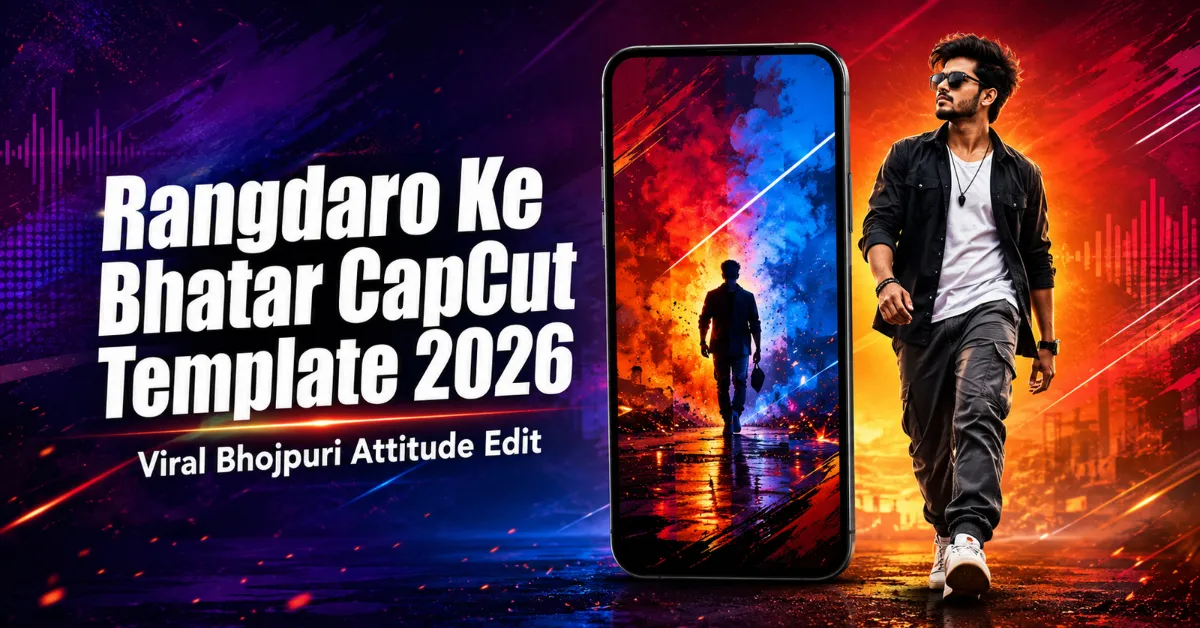
The Rangdaro Ke Bhatar CapCut Template makes this process easier by keeping the main timing and effects ready. You only need to record suitable vertical clips, open the template, add your footage and review the result. This guide includes two public template versions, recording ideas, current usage steps, export settings, troubleshooting and important safety guidance.
Quick Details
| Item | Details |
|---|---|
| Template name | Rangdaro Ke Bhatar CapCut Template |
| Style | Bhojpuri attitude Reel |
| Main effects | Blur, slow motion, flash, shake and beat transitions |
| Best footage | Confident walking, close-up and stationary bike or car-side poses |
| Media count | Check the live preview of each version |
| Recommended format | Vertical 9:16 |
| Export quality | 1080p when supported |
| Editing level | Beginner-friendly |
| Required app | CapCut mobile app |
What Is a CapCut Template?
A CapCut template is a ready-made editing layout containing media slots, timing, transitions, filters, animations and audio. When you select your own videos or photos, the app places them in those prepared slots and applies the existing edit.
This helps with beat-based videos, but you must still choose good footage, arrange it correctly and fix poor crops before exporting.
For more regional options, visit our Viral Bhojpuri CapCut Templates collection. If you prefer another bold walking edit, see the Attitude Boy CapCut Template.
Details of the Rangdaro Ke Bhatar CapCut Template
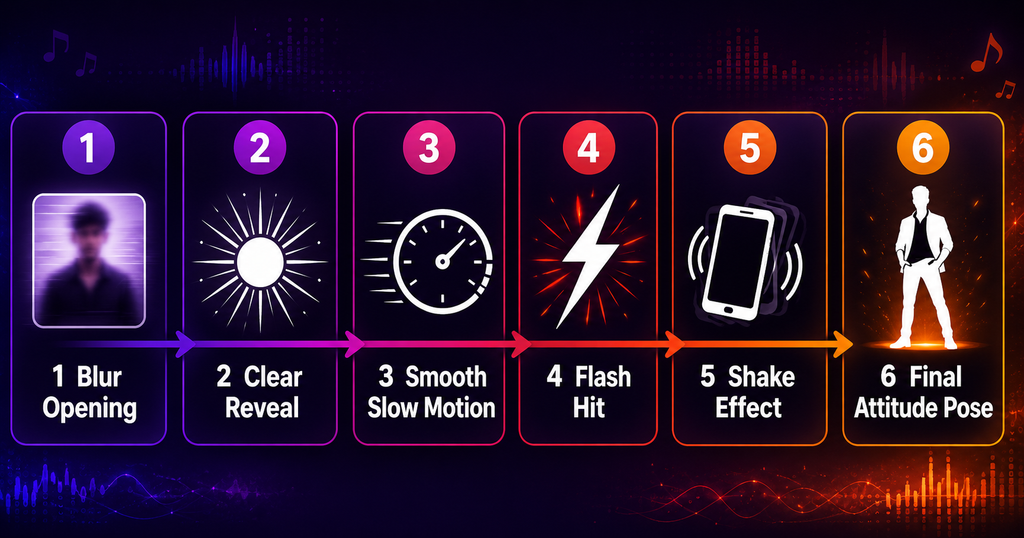
The edit opens with a deliberate blur that briefly hides the subject and creates curiosity. On the next musical cue, the footage becomes clear and moves into smooth slow motion. This reveal gives a simple walking or posing clip a stronger entrance without requiring manual keyframes.
Flash effects highlight selected beats, while shakes add energy. Depending on the version, clips may change through transitions or be reframed with zoom. The sequence usually finishes on a clear attitude pose.
You can understand the visual flow like this:
Blur Opening → Clear Reveal → Smooth Slow Motion → Flash Hit → Shake Effect → Final Attitude Pose
Similarly named versions can use different timing, duration or media slots. Watch both previews before deciding which one best suits your recordings.
Why This Bhojpuri Editing Style Gets Attention
Attitude edits work when movement, expression and music support each other. Blur delays the reveal, slow motion controls the walk and flashes add energy.
Bhojpuri song Reels can feature one person, two friends or a group. Walking, lip-sync, bike-side and car-side shots let creators add their own personality while templates reduce editing time.
However, no template can guarantee views or virality. Performance also depends on originality, audience interest, caption, posting time, video quality and platform recommendations.
What Kind of Video Should You Record?
Record short clips specially for the edit. A confident walk is usually strongest: move naturally towards or across the camera, relax your shoulders and finish with a side look.
Other useful ideas include:
- A full-body walking clip filmed from a slightly low angle.
- A waist-up shot with a clear expression or short lip-sync moment.
- A stationary pose beside a parked bike or car.
- A safe clip of two friends walking together.
- A close-up in which you adjust your sunglasses, jacket or hair naturally.
- A final still pose with enough empty space around the subject.
Our Dhamaka Bhojpuri CapCut Template guide contains more slow-motion clip ideas. You can also check the Nachaiab Hathiyar Se CapCut Template for a blur, flip and zoom-based Bhojpuri style.
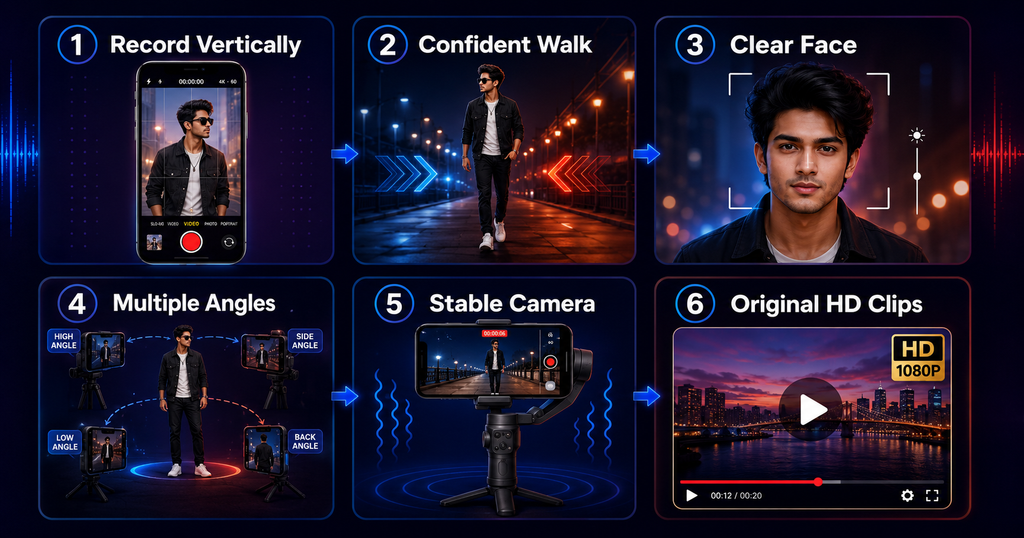
Recording Tips for a Better Result
- Record vertically in a 9:16 frame.
- Use good daylight or a bright, soft light source.
- Clean the camera lens before recording.
- Keep your full face visible during the important reveal.
- Use a tripod or ask a friend to hold the phone steadily.
- Capture each action for several extra seconds.
- Record more than one angle so you have alternatives.
- Use original HD clips instead of compressed WhatsApp forwards.
- Keep enough space above the head and around the body for zoom and shake effects.
Do not add slow motion or strong filters before importing because pre-edited footage can become choppy or over-processed.
Most importantly, record safely. A bike or car should be parked securely if you are using it as a background. Never film while driving, sit on a moving vehicle for a pose, block traffic or stand on railway tracks.
Rangdaro Ke Bhatar CapCut Template Links
Two public versions are available. Watch each preview because clip count, timing and effects can differ.
Version 1: Rangdar Ke Bhatar Attitude Edit
Preview this version first if you want a blur-to-slow-motion walking edit. Confirm the required number of videos on its selection screen.
Version 2: Rangdaro Ke Bhatar Alternative Edit
Try this version if its timing fits your footage better or if the first option is unavailable. Do not assume both versions request the same media.
Note: Template availability can vary by country, device, app version, account and creator status. A public template may also contain Pro elements. Review any payment notice inside the official app before export. RoyEditors is not affiliated with CapCut; the templates, app name, music, logos and trademarks belong to their respective owners. We share public links only for convenience.
How to Use the Rangdaro Ke Bhatar CapCut Template
Follow these steps on your mobile phone:
- Install or update the official CapCut app.
- Open either template button provided above.
- Allow your browser to redirect the link to CapCut if prompted.
- Watch the complete preview and note the media count.
- Tap Use template.
- Select the requested video clips from your gallery.
- Arrange them in the intended order and tap Preview.
- Wait while CapCut applies the effects and timing.
- Select a segment and use Edit, Replace or Crop where available.
- Check the blur reveal, face crop, shake timing and final pose.
- Tap Export and save the finished video.
Button names can vary slightly by app version. CapCut’s full online template workflow is mainly available on mobile, so a desktop browser may show only a limited preview.
Best Order for Your Clips
For a version requiring multiple videos, try this sequence:
- Opening: A steady walking shot with your full body visible.
- Reveal: A medium shot with a confident expression.
- Beat section: A side-angle walk or safe two-friend clip.
- Close-up: A clear face with a small natural gesture.
- Finish: Your strongest stationary attitude pose.
For fewer slots, prioritise the opening walk, close-up and final pose. For extra slots, add alternate angles. Preview after each replacement.
How to Customise the Result
Some versions provide Edit more for adjusting crop, replacing footage, balancing brightness or adding short text.
Keep text brief and away from the top and bottom interface areas of a Reel. Avoid adding too many stickers, flashes or transitions because the template already has an energetic style. If the shake feels too strong, use a steadier source clip or try the alternative version rather than adding more motion.
Music usage rights differ by platform and region. If the destination platform mutes the audio, replace it with a licensed track from that platform’s music library or audio you have permission to use.
Recommended Export Settings
For Instagram Reels and YouTube Shorts, export in 1080p with the original 9:16 frame. 30 fps is suitable for most edits. Choose 60 fps only if the source footage supports it and the preview remains smooth.
Watch the exported file once in your gallery before uploading. Check that the sound is present, no face is cropped, flashes are not uncomfortable and the final frame does not end suddenly. Upload the original exported file instead of sending it through a messaging app first, as additional compression reduces quality.
Common Problems and Easy Fixes
The template link does not open
Use a mobile device with CapCut installed, update the app and try a stable connection. If one version fails, open the other. Template availability may be restricted in your region.
The “Use template” button is missing
Make sure the page opened inside the official app rather than only in a browser. Sign in if requested and restart CapCut. The feature may not be supported by your current region or app version.
The app asks for a different number of clips
Follow the live selection screen. The two versions may have different media slots or may be updated by their creators.
My face is cropped during the reveal
Use Crop or Edit on the affected segment. Replace the footage with a wider shot that keeps your head and shoulders near the centre.
Slow motion looks choppy
Use original footage recorded at a suitable frame rate. Very short, forwarded or compressed clips do not slow down smoothly.
The exported video looks blurry
Replace screenshots and downloaded social-media clips with original HD recordings. Export at 1080p and ensure enough free storage is available.
Export stops or fails
Close unused apps, free storage, restart the phone and let all template resources load before trying again.
The audio is muted after posting
The platform may restrict the song for copyright or regional licensing reasons. Use audio provided by its licensed library or another track you are authorised to publish.
Privacy, Safety and Responsible Posting
Use footage you own and take consent before showing friends or bystanders. Avoid revealing vehicle numbers, home addresses, school details, identity cards or live-location information. Do not use dangerous props, imitate violence or record in a place that risks injury merely to create an attitude look.
This tutorial is independent and does not claim ownership of the public templates or music. Users are responsible for checking copyright, music licensing and platform rules before publishing or monetising a video.
Frequently Asked Questions
Is the Rangdaro Ke Bhatar CapCut Template free?
It may be usable without charge, but a template or some included effects can become Pro. Check the live preview and export screen for any payment notice.
How many clips do I need?
Prepare four or five good clips plus alternatives. Use the exact number shown by the version you open.
Which video works best?
A stable vertical walking clip with good light, clear face and a confident final pose usually matches this style well.
Can I use photos instead of videos?
Only if the template selection screen accepts photos. Video footage generally works better for smooth slow motion and shake effects.
Why can I not find the template in search?
Search results vary by language, region, app version and template status. Use the two direct links above and preview both.
Can I edit the result after applying the template?
Yes, where the app provides Edit more or segment-level controls. You can replace, crop and lightly adjust clips.
Can I post the edit on Instagram and YouTube?
Yes, provided you have permission to use the footage and audio. Either platform may restrict music according to its licensing rules.
Will this template make my video viral?
No template guarantees reach. It can help create a polished trend-style edit, but performance depends on content quality, originality, audience response and platform recommendations.
Conclusion
The Rangdaro Ke Bhatar CapCut Template offers a quick way to create a Bhojpuri attitude Reel featuring an opening blur, clear reveal, smooth slow motion, flashes and shake effects. Record safe, stable vertical clips, compare both template versions, correct the crop and export in 1080p.
Use the template as a starting point and bring your own expressions, location and clip order to the edit. A natural confident walk will usually look stronger than an unsafe or exaggerated pose.

Renu Mishra Roy is the founder and editor of Roy Editors. She writes about trending CapCut templates, VN codes, and AI photo editing, testing each template herself before publishing so readers get steps that actually work. Her guides focus on helping creators make clean, viral-style Reels and Shorts without wasting time on complicated editing.