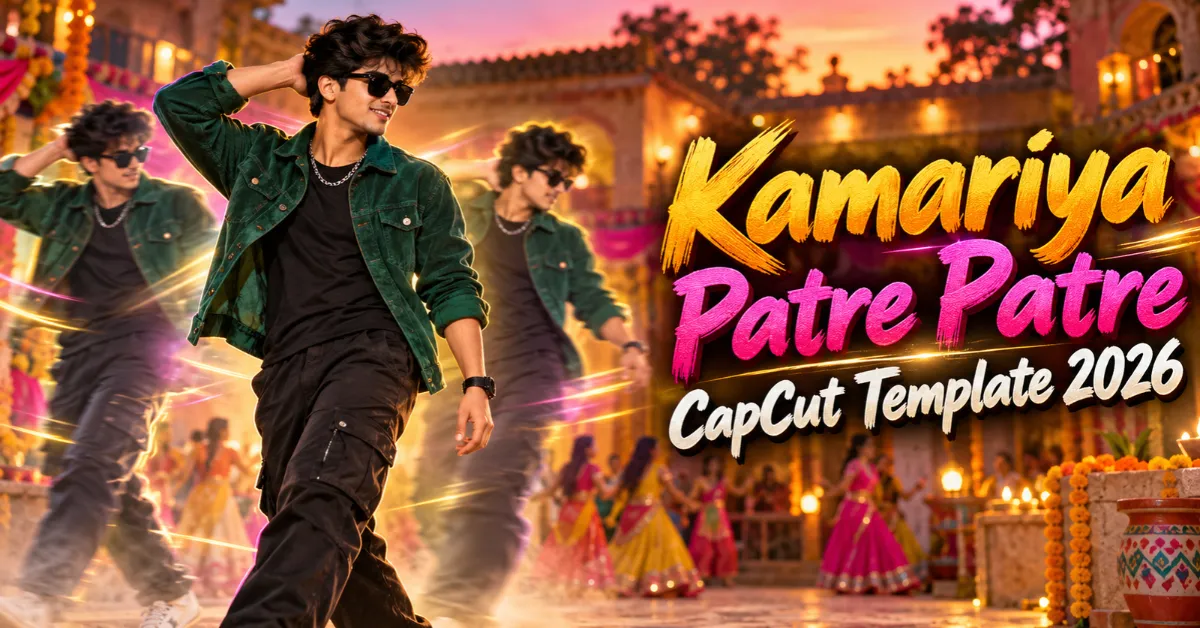
The Kamariya Patre Patre CapCut Template is designed for creators who want to make an energetic Bhojpuri Reel without arranging every effect manually. It combines a blur introduction, flash transitions, body cutouts, slow motion and music-synchronized clip changes in a ready-made project.
Two template versions are provided in this guide, giving you more than one editing style to try. Record a few clear vertical clips, open your preferred version in CapCut and replace the sample media with your own footage.
If you enjoy regional song edits, you can also explore our complete collection of Viral Bhojpuri CapCut Templates.
What Is a CapCut Template?
A CapCut template is a pre-edited project containing media placeholders, effects, transitions, filters and music timing. Instead of starting with an empty timeline, you replace the sample media with your own clips while keeping the prepared editing sequence.
Templates make video editing faster for beginners. You do not need to cut every beat manually or search for each effect separately. However, the available customization, number of media slots and exact duration depend on the project created by the template author.
Always watch the live preview before choosing your footage because a creator can update, restrict or remove a template.
About the Kamariya Patre Patre CapCut Template
The edit usually starts with a smooth blur effect that partly hides the subject. A flash transition then reveals the first clear clip on the beat. As the song continues, body cutouts appear briefly before introducing the following scenes.
Slow motion gives walking, dancing and posing clips a more cinematic feel, while beat-synchronized transitions maintain the energy of the Bhojpuri track. Colour filters help different recordings look like one consistent sequence.
The two linked versions may include different music sections, clip counts or effects. Their common features may include:
- A blurred opening frame
- Flash or zoom transitions
- Body cutout reveals
- Smooth slow-motion clips
- Beat-matched scene changes
- Cinematic colour filters
- Automatic vertical cropping
For another attitude-based Bhojpuri sequence featuring blur and slow motion, see the Khoon Khandani CapCut Template.
Benefits of Using This Template
The template offers several practical advantages:
- It reduces manual editing time.
- Music timing is already prepared.
- Effects and transitions are automatically applied.
- Beginners can create an organized video sequence.
- Two versions provide more creative choice.
- You can preview the result before exporting.
- The vertical format suits short-video platforms.
The template provides the editing structure, but strong footage is still essential. Clear lighting, stable framing and expressive movement will improve the finished Reel.
What Kind of Clips Should You Record?
This Bhojpuri editing style suits lively, confident and visually varied footage. Prepare several short clips such as:
- A simple dance step
- A confident walk toward the camera
- A turn followed by a final pose
- A waist-up lip-sync shot
- A full-body traditional outfit clip
- A close-up showing your expression
- A safe pose beside a stationary bike or car
- A group celebration or festive moment
Record each action for five to seven seconds so the template has enough footage to process. Use a combination of wide, medium and close shots rather than repeating the same camera angle.
If you prefer a more energetic DJ-style song edit, the Lollipop Bhojpuri CapCut Template is another suitable option.
Tips for Recording Better Footage
Follow these simple recording tips:
- Clean the phone camera lens before filming.
- Record vertically in a 9:16 aspect ratio.
- Select a bright location with a clean background.
- Mount the phone on a tripod or ask someone to hold it steadily.
- Keep your face and body near the centre of the frame.
- Leave space around your arms and legs for cutout and zoom effects.
- Record each movement more than once.
- Leave extra footage before and after the main action.
- Use original HD clips instead of compressed copies from messaging apps.
Record in a safe location. Do not film while driving, stand in moving traffic or use railway tracks for a Reel.
Kamariya Patre Patre CapCut Template Links
The following buttons open two publicly shared versions. Open this article on a mobile phone with the official CapCut application installed. Watch each preview before selecting your media because the versions may require different clip counts.
Template 1: Body Cutout and Beat Edit
This version is suitable for multiple walking, posing or dance clips. It may use blur, flash and body cutout effects to reveal the next scene.
Template 2: Alternative Bhojpuri Reel Edit
Try this version if you want a different timing pattern or transition sequence. Check the live preview to see whether it requires videos, photos or a combination of both.
How to Use the Kamariya Patre Patre CapCut Template
Follow these steps to create your Reel:
- Install or update CapCut through an official app store or source.
- Open this article on the same phone where CapCut is installed.
- Tap the button for Template 1 or Template 2.
- Allow the browser to open the link in CapCut.
- Watch the complete preview and note the required media count.
- Tap Use Template.
- Select your videos or photos in the order shown by the preview.
- Tap Preview or Next and wait while the effects process.
- Check the face position, automatic cropping and clip order.
- Replace any media item that does not fit the transition.
- Export the finished Reel in high quality.
Button names may vary slightly according to the application version, language and region.
Recommended Export Settings
Use these settings when available:
- Resolution: 1080 × 1920 pixels
- Aspect ratio: 9:16
- Frame rate: 30 FPS, or match the original footage
- Quality: High
- Format: MP4
Choose 60 FPS only when the source footage supports it. A high export setting cannot restore genuine detail missing from a blurry or low-resolution recording.
How to Export Without a Watermark
Select Export without watermark if CapCut provides that option. Some projects may add a separate CapCut ending clip. Check the timeline or preview and remove that ending segment when editing is permitted.
Avoid heavily cropping the entire video to conceal a watermark because it can lower quality and remove important parts of the frame.
Template Not Working? Try These Solutions
Open the link on a mobile device
CapCut deep links generally work better on a phone where the official application is already installed.
Update CapCut
An older app version may not support the current template page. Install the latest available update from an official source.
Try the second version
If Template 1 is unavailable, open Template 2. The two projects have separate links, so one may remain accessible when the other is restricted or removed.
Clear temporary app data
Clear the CapCut cache through your phone settings, reopen the app and try the link again.
Check your connection and storage
Use a stable internet connection and make sure the phone has enough free storage for preview processing and export.
Try again later
Template availability can vary by region, account and application version. An original creator may also remove a project.
Tips to Make the Reel More Attractive
- Begin with your strongest visual clip.
- Match movements with the energy of the song.
- Wear colours that stand out from the background.
- Maintain similar lighting across all recordings.
- Keep hands and feet inside the frame.
- Avoid adding too many extra effects.
- Check every cutout edge and automatic crop.
- Use a short caption with a few relevant hashtags.
- Upload the original exported file to avoid repeated compression.
No template can guarantee viral views. Performance also depends on originality, recording quality, audience interest, posting time and platform distribution.
For a dance-focused alternative using blur, flashes and cinematic colour, try the Nach Tu Nagin CapCut Template.
Frequently Asked Questions
Is the Kamariya Patre Patre CapCut Template free?
The publicly shared projects can generally be opened without manually rebuilding the edit. Certain effects, assets or export options may depend on your account, plan, application version or region.
Why are there two template links?
The two links provide alternative versions. They may use different media counts, song sections, timings or transition patterns.
How many clips do I need?
The exact number appears in the live preview or after you tap Use Template. Record several extra clips so you have alternatives for each slot.
Can I use photos instead of videos?
Only if the selected version accepts photos in its media slots. Moving clips usually suit body cutouts, slow motion and beat changes better.
Which ratio is best for this template?
Use a vertical 9:16 ratio for Instagram Reels, YouTube Shorts and similar full-screen platforms.
Can I change the song?
You may be able to replace the audio after creating the edit, but a different song may not match the prepared beat timing. Make sure you have permission to use any replacement audio.
Will this template make my Reel viral?
It can help you follow a popular editing style, but it cannot guarantee reach or views. Your footage, presentation and audience response remain important.
Important Disclaimer
Some CapCut templates may not work in certain regions because of availability restrictions. If a button does not open, try the other version, try again later or open the link directly through the official CapCut application.
RoyEditors.com does not own these templates and is not affiliated with CapCut. CapCut, its logos and related trademarks belong to their respective owners. We only share publicly available template links for informational convenience. Template music, effects and availability may change without notice.
Conclusion
The Kamariya Patre Patre CapCut Template provides a quick way to create a Bhojpuri Reel featuring blur, flash transitions, body cutouts, slow motion and beat-synchronized effects. Choose one of the two template versions, watch its current preview and add clear vertical clips in the correct order.
For the best result, record in good light, keep the camera stable, review automatic cropping and export at 1080 × 1920 pixels. Treat the template as a creative starting point rather than a guarantee of viral views, and add your own expression to make the final Reel distinctive.
1 thought on “Kamariya Patre Patre CapCut Template 2026 – Viral Bhojpuri Reel”