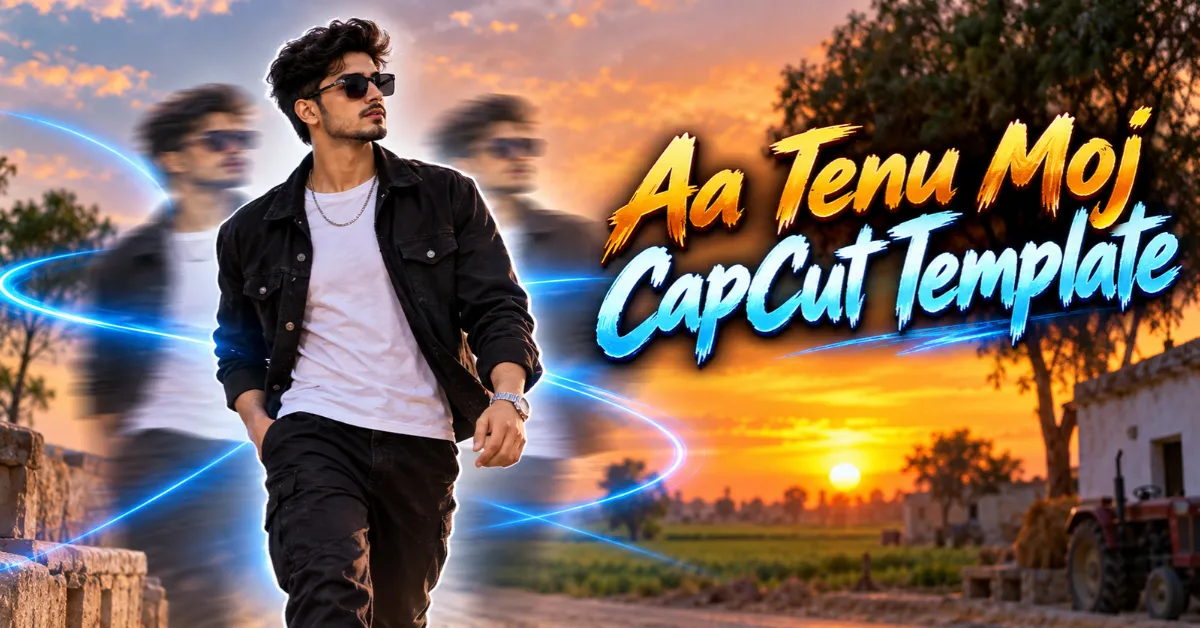
The Aa Tenu Moj CapCut Template is designed for creators who want to make an energetic Haryanvi attitude reel without editing every beat manually. It combines blur effects, slow motion, body pop-up transitions and music-synchronized clip changes in one ready-made project.
You only need to record a few short videos, open the template in CapCut and select your clips. The template then applies its prepared timing and effects automatically. In this guide, you will learn what the edit includes, how to prepare suitable footage and how to use the template link correctly.
What Is the Aa Tenu Moj CapCut Template?
The Aa Tenu Moj CapCut Template is a pre-edited video project based on a Haryanvi song. Its music timing, visual effects, filters and transitions are already arranged. When you use the template, your selected clips replace the sample footage while the original editing structure remains in place.
This makes the process suitable for beginners. You do not need to split every clip manually or match individual effects with the song. CapCut handles most of the technical work, and you can preview the result before exporting it.
However, the template cannot fully fix dark, shaky or blurry footage. Clear clips with confident expressions will produce a much better result.
Details of the Aa Tenu Moj CapCut Template
The edit begins with a short blur effect that creates suspense. The main subject then becomes visible as the music reaches its next beat. After this introduction, different clips appear through creative body pop-up effects.
In this transition style, a cutout from the upcoming clip appears first. The full video then follows with slow motion and a synchronized beat change. This pattern continues across multiple clips, creating a stylish attitude reel.
Depending on the version currently shared by the original creator, the template may include:
- An opening blur effect
- Body cutout pop-up transitions
- Beat-synchronized clip changes
- Smooth slow-motion sections
- Flash or motion effects
- Cinematic colour filters
- Automatic vertical cropping
Watch the full preview before adding your footage. It will show you the order, duration and framing required for every media slot.
Why Use This Haryanvi CapCut Template?
A ready-made template saves time because the main editing decisions have already been made. Its benefits include:
- Fast editing directly from a smartphone
- No advanced editing skills required
- Pre-arranged song timing
- Automatic transitions and effects
- Consistent visual style
- Easy replacement of sample footage
- Preview before export
The template provides the effects, but your footage still determines how professional the finished reel looks.
How to Prepare Clips for Editing
This template works best with multiple short attitude videos. Record five or six clips, each approximately five to six seconds long. Use different angles and positions so every beat reveals a fresh shot.
Suitable clip ideas include:
- A confident walking shot
- A slow turn toward the camera
- A close-up showing your expression
- An outfit or sunglasses adjustment
- A wide shot at an attractive location
- A side-angle walking video
- A safe pose beside a stationary bike or car
Use a combination of wide, medium and close shots. Keep your subject near the centre because the template may crop the original footage automatically.
Avoid recording while driving or performing unsafe stunts. Lighting, styling, expressions and camera angles are enough to create a strong attitude reel.
Tips for Recording Better Video Clips
You can record suitable footage with a regular smartphone by following these steps:
- Clean the camera lens before filming.
- Hold or mount the phone vertically in a 9:16 position.
- Select a bright location with a clean background.
- Use a stable tripod or ask someone to hold the phone steadily.
- Record each movement for a few extra seconds.
- Walk slowly and maintain a confident expression.
- Film the same action from more than one angle.
- Leave extra footage at the beginning and end of each clip.
- Review everything and keep only the clearest recordings.
If your phone supports a higher frame rate, it may help slow-motion scenes look smoother. Good lighting remains essential regardless of the camera settings.
Aa Tenu Moj CapCut Template Link

The button above is intended to open the publicly shared project in the official CapCut application. For the best chance of opening it successfully, use a phone with the latest available version of CapCut installed.
How to Use the Aa Tenu Moj CapCut Template
Follow these steps to create your reel:
- Install or update the official CapCut application.
- Tap the Check This Template on CapCut button above.
- Allow the link to open in CapCut.
- Watch the complete template preview.
- Tap Use Template.
- Select the requested number of videos from your gallery.
- Arrange the clips according to the preview and media-slot duration.
- Tap Preview or Next and wait for processing.
- Check the cropping, clip order and transitions.
- Replace any clip that does not fit correctly.
- Export the finished reel in high quality.
The wording and location of the buttons may differ according to your CapCut version, device and region.
Recommended Export Settings
Use these settings when available:
- Resolution: 1080p
- Aspect ratio: 9:16
- Frame rate: 30 FPS or 60 FPS when supported by the source footage
- Quality: High
- Format: MP4
Using 60 FPS will not repair footage originally recorded at a low frame rate. For most social-media reels, 1080p at 30 FPS offers a good balance between clarity and file size.
Also, check Uthaibu Gori Lahanga CapCut Template 2026 – Viral Bhojpuri Reel
How to Export Without a Watermark
If CapCut displays an Export without watermark option, select it before saving the video. Some projects may add a separate CapCut ending segment. Review the timeline or preview and remove that final segment when the application provides the option.
Avoid cropping the complete video aggressively to hide a watermark. This can reduce quality and cut important parts of the subject from the frame.
Template Link Not Working? Try These Fixes
The template may fail to open because of regional availability, an outdated application or removal by the original creator. Try the following solutions:
Open the link on a mobile phone
Template links normally work better on a device where CapCut is already installed.
Update the CapCut application
Visit your device’s official app store and install the latest available update.
Search for the template manually
Open the template or discovery section and search for Aa Tenu Moj. Menu names and search availability can vary by region.
Clear temporary application data
Clear the CapCut cache through your phone settings, reopen the application and try the link again.
Try again later
A temporary server or connection problem may prevent the page from loading. If the creator permanently deletes the project, the original link may stop working.
Tips to Make the Beat Edit Look Better
The following choices can improve your final reel:
- Place your strongest clip at the beginning.
- Wear colours that stand out from the background.
- Use similar lighting in every shot.
- Match your movements to the energy of the song.
- Keep the subject visible and near the centre.
- Avoid mixing horizontal and vertical footage.
- Do not add too many extra effects after using the template.
- Check every automatic crop before exporting.
- Use a short caption and only relevant hashtags.
No template can guarantee that a reel will go viral. Its performance also depends on originality, clip quality, audience interest, posting time and platform recommendations.
Frequently Asked Questions
Is the Aa Tenu Moj CapCut Template free?
The publicly shared template can generally be opened without manually recreating the edit. Some features, effects or export options may depend on your app version, account or region.
How many clips do I need?
The exact number appears when you open the template. Preparing five or six short videos in advance will give you more options when filling its media slots.
What is a body pop-up effect?
It is a transition in which a cutout of the subject or part of the next clip appears briefly before the complete scene is revealed.
Can I use photos instead of videos?
You can use photos only if the template’s media slots support images. Short videos usually produce a more natural result for slow motion and body pop-up effects.
Why is the Use Template button missing?
The project may be restricted in your location, removed by its creator or unsupported by your current CapCut version. Update the app and try opening the link on a mobile device.
Which aspect ratio should I use?
Record your footage vertically in a 9:16 ratio for Instagram Reels, YouTube Shorts and similar platforms.
Important Disclaimer
Some CapCut templates may not work in certain regions because of availability restrictions. If the button does not open, try again later or open the link directly through the official CapCut application.
RoyEditors.com does not own this template and is not affiliated with CapCut. CapCut, its logos and related trademarks belong to their respective owners. We only share a publicly available template link for informational convenience. Template music, effects and availability may change without notice.
Conclusion
The Aa Tenu Moj CapCut Template offers an easy way to create a Haryanvi attitude reel using beat-synchronized cuts, body pop-up effects and slow motion. Record several clear vertical clips, open the template link and review each scene carefully before exporting.
With steady footage, good lighting and confident expressions, you can create a polished beat edit without completing every step manually. Keep visiting RoyEditors.com for more trending CapCut templates, Haryanvi reel ideas and beginner-friendly editing guides.
2 thoughts on “Aa Tenu Moj CapCut Template – Viral Haryanvi Beat Edit”