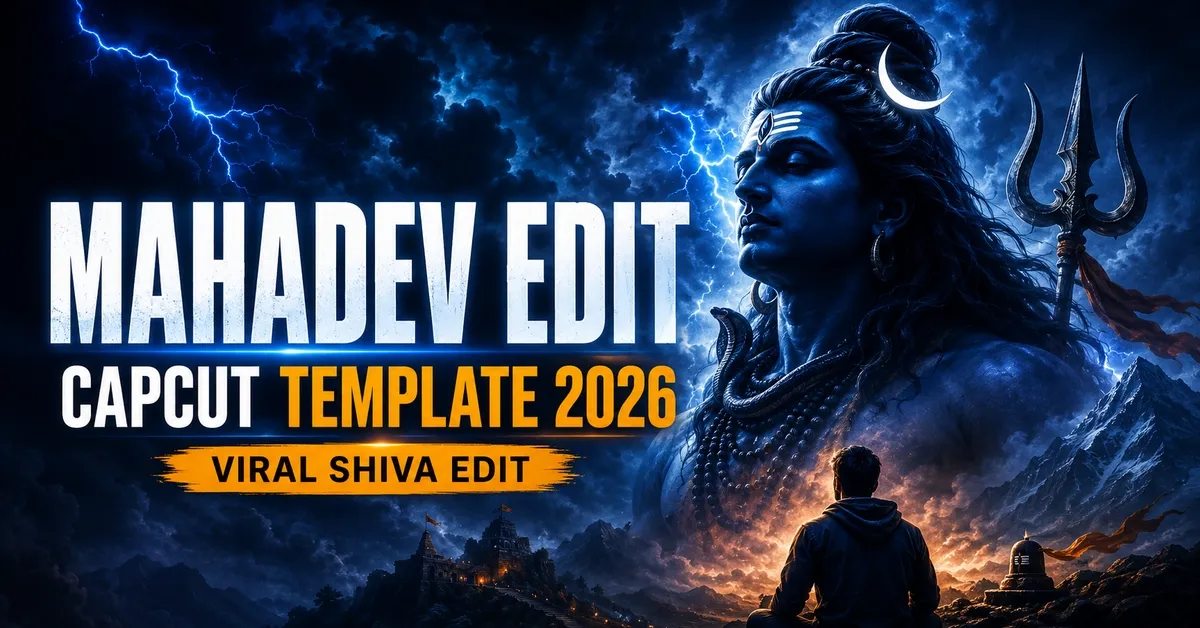
Mahadev Edit CapCut Template – Friends, welcome to another trending video-editing tutorial. Devotional videos featuring Lord Shiva, powerful transitions, emotional text and dramatic lightning effects frequently attract attention on Instagram Reels, YouTube Shorts and other social-media platforms.
Creating this type of video manually can take considerable time because you must synchronize the clips, text, effects, music and transitions. However, the Mahadev Edit CapCut Template makes the process much easier. The template already contains the main editing sequence, so you only need to select suitable clips from your phone.
In this guide, you will learn what the template contains, which clips you should record, how to open the template and how to export your finished Mahadev video in high quality.
What Is the Mahadev Edit CapCut Template?
The Mahadev Edit CapCut Template is a ready-made video-editing project designed around a devotional Lord Shiva theme. Its effects, transitions, text animation, timing and visual sequence are already arranged.
Instead of creating the complete project manually, you can open the template in CapCut and replace its sample media with your own clips. CapCut will then place your clips into the existing sequence automatically.
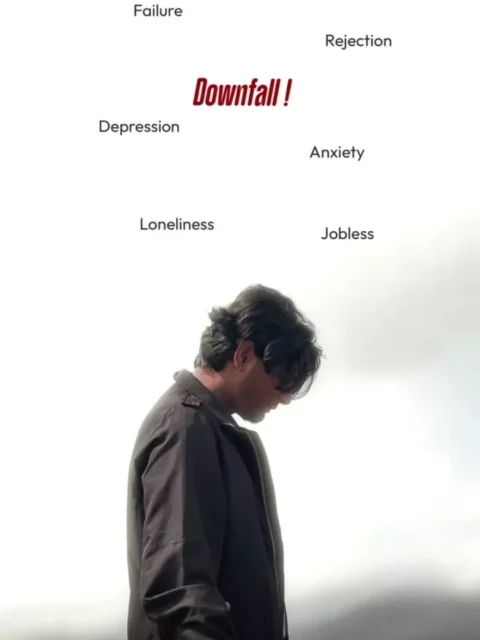
This particular edit begins with a person appearing worried or discouraged. Words representing personal struggles appear around the subject before the scene changes into a powerful Mahadev reveal. The final result presents an emotional journey from difficulty to courage, hope and spiritual strength.
You can explore more CapCut trend templates for other devotional, attitude and trending Reel styles.
Benefits of Using a CapCut Template
Using a template can save a considerable amount of editing time. Effects that might otherwise require several manual steps are already placed on the timeline and synchronized with the audio.
A beginner can therefore create a professional-looking Reel without learning complicated keyframes, masking, beat synchronization or transition settings. You only need to understand how to select the correct clips and place them in the required order.
Another advantage is consistency. Since the timing, text and effects are already prepared, every part of the video follows the same visual style. This can make the final edit look cleaner than a project containing randomly selected effects.
CapCut templates can normally be used on a mobile phone, making them convenient for creators who do not have access to desktop editing software. However, certain effects, songs or features may differ depending on your CapCut version, device or region.
Details of the Mahadev Edit CapCut Template
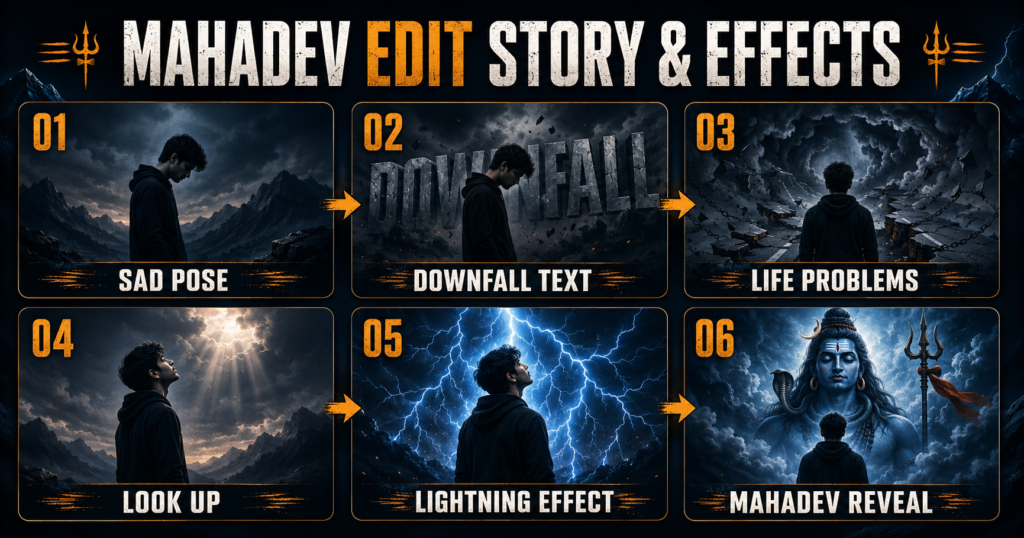
The template follows an emotional and devotional storyline. At the beginning, a person stands in a sad or discouraged pose while the word “Downfall” appears in the background. Other words, including “Depression,” “Anxiety,” “Failure” and “Loser,” may then appear one after another to represent the difficulties affecting the person’s life.
A transition changes the mood of the video. The person turns or looks towards the sky, and a dramatic image of Lord Shiva appears in the background. Lightning flashes and powerful visual effects make the scene feel intense and cinematic.
The final scene communicates a hopeful message: difficult circumstances can be faced with courage, faith and determination. The devotional reveal is the main highlight of the edit, so your pose and camera angle should match it properly.
When sharing content containing words related to anxiety or depression, present them sensitively. These conditions are genuine health concerns, and spiritual content should not be presented as a replacement for professional support when someone needs it.
How to Prepare Your Clips
The quality of your original recording will have a major effect on the finished video. Even a well-designed template cannot completely improve a dark, shaky or heavily blurred clip.
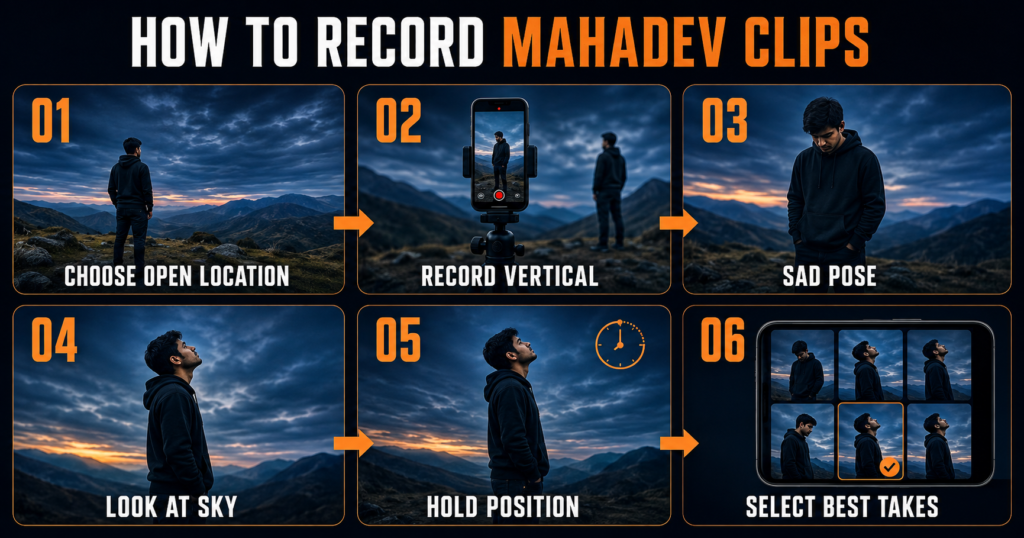
Choose an open and uncluttered location where the sky is visible. This will help the Mahadev background and lightning effects blend naturally with your footage. Avoid locations containing too many people, vehicles or distracting objects.
Record the video vertically because Instagram Reels and YouTube Shorts normally use a 9:16 frame. Keep the camera stable by using a tripod or asking someone to hold the phone carefully.
Start by recording a sad or thoughtful pose. You can look down, keep your hands by your sides or stand still for several seconds. Next, record another clip in which you slowly raise your head and look towards the sky. This pose should feel calm and confident because it will be used during the Mahadev reveal.
Record three or four different takes from slightly different angles. Avoid moving too quickly, and hold each pose for at least four to five seconds. The template can trim a longer recording, but it cannot restore a pose that ends too early.
For better results:
- Clean your camera lens before recording.
- Use soft daylight whenever possible.
- Keep your full body or upper body inside the frame.
- Avoid strong light directly behind your face.
- Record without unnecessary camera movement.
- Wear simple clothes that remain clearly visible against the background.
- Leave some empty space above and around your body for visual effects.
Mahadev Edit CapCut Template Link
Use the button below to open the original template:
Important note: Some CapCut templates may be unavailable in certain regions because of CapCut restrictions. If the button does not open, update the official CapCut application and try the link again later. We are not affiliated with CapCut. CapCut, its logo and related trademarks belong to their respective owners. This website only shares publicly available template links for users’ convenience.
How to Use the Mahadev Edit CapCut Template
First, install or update the official CapCut application on your phone. Using the latest version can prevent missing-effect and compatibility problems.
After installing the app, follow these steps:
- Tap the “Check This Template on CapCut” button provided above.
- Allow the link to open in the official CapCut application.
- Watch the complete template preview before adding your media.
- Tap the “Use Template” button displayed on the preview screen.
- CapCut will open your phone’s gallery and show the required media slots.
- Select your clips in the same order shown in the preview.
- Use the sad or downward-looking clip for the opening section.
- Place the upward-looking or confident pose in the Mahadev reveal section.
- Tap “Next” and wait while CapCut processes the video.
- Watch the entire preview and check the crop, timing and transitions.
- Replace any clip that does not match the scene correctly.
- Tap “Export” when you are satisfied with the final result.
Do not select your clips randomly. The first and second scenes have different emotional purposes, so following the correct order is essential.
Best Export Settings for a Mahadev Reel
Export the finished video in a vertical 9:16 format. A resolution of 1080p is usually suitable for Instagram Reels, Facebook Reels and YouTube Shorts.
Keep the frame rate consistent with your original recording. If your clips were recorded at 30 frames per second, exporting at 30 fps is normally sufficient. Choosing 60 fps will not automatically improve footage originally recorded at a lower frame rate.
Select high quality or a suitable bitrate if your phone has enough storage. After exporting, watch the saved file once before uploading it. Check that the text is readable, the audio remains synchronized and no important part of your body has been cropped.
Tips for a Better Mahadev Video Edit
Watch the template preview several times before recording your footage. Notice where the pose changes, when the lightning appears and how much empty background space is needed.
Your performance should also match the mood. Begin with a quiet and discouraged expression, and then shift into a stronger, more hopeful pose during the reveal. This contrast makes the transformation more effective.
Use properly licensed or permitted artwork if you manually add any Lord Shiva image. Religious imagery should be presented respectfully and should not be stretched, distorted or covered with inappropriate text.
Avoid adding too many additional filters after applying the template. Strong filters can make skin tones look unnatural and reduce the visibility of the lightning and background effects.
Common Problems and Solutions
The Template Link Does Not Open
Make sure the official CapCut application is installed and updated. Open the link in your phone’s regular browser and allow it to redirect to CapCut. Availability may still depend on your region.
The Template Shows “Unavailable”
The creator may have removed the project, or it may not be supported in your location. Try again later and check the website for an updated link or a similar Mahadev template.
My Clips Appear in the Wrong Order
Return to the media-selection screen and follow the template preview carefully. Use your sad pose first and the upward-looking clip for the devotional reveal.
The Mahadev Background Does Not Look Realistic
Use footage recorded against a simple background with enough visible sky. Busy indoor locations can make background replacement and overlays look less convincing.
The Exported Video Looks Blurry
Use clear original footage and export at 1080p with high quality selected. Sending clips through messaging apps before editing may compress them, so use the original camera files whenever possible.
CapCut Stops During Export
Free some storage space, close unnecessary applications and restart your phone. Also confirm that CapCut has permission to access your gallery and save files.
The Text or Effect Is Missing
Update CapCut and reopen the template. Some effects may not load correctly on older app versions or devices with limited resources.
Frequently Asked Questions
Is the Mahadev Edit CapCut Template free?
The template may be opened through CapCut without manual editing, but availability of certain effects or features can depend on your app version, account and region.
How many clips do I need?
The exact number is shown when you tap “Use Template.” It is helpful to record at least three or four takes so you can select the clips that match the preview most accurately.
Can beginners use this template?
Yes. The timing, text, effects and transitions are already prepared. Beginners mainly need to select the correct media and review the result before exporting.
Can I use a photo instead of a video?
Only if the template includes a photo slot. A video clip is usually more suitable for this edit because body movement and the upward-looking pose make the final reveal feel more natural.
Why is CapCut asking me to replace several clips?
The template contains multiple media slots. Each slot corresponds to a different part of the edit, so you may need to select the same recording more than once or use different takes.
Can I upload the result to Instagram or YouTube?
Yes, but you should ensure that you have permission to use the selected audio, artwork and other media. Platform copyright rules may still apply.
Can I change the text in the template?
It depends on how the template creator designed the project. Some text layers can be edited, while others are permanently included in the template.
What is the best video size for this edit?
Record and export in a vertical 9:16 format. A 1080 × 1920-pixel video is generally suitable for Reels and Shorts.
Conclusion
The Mahadev Edit CapCut Template offers a simple way to create an emotional Lord Shiva video without manually arranging every effect and transition. Prepare clear vertical clips, match your poses with the preview, add the media in the correct order and check the completed edit before exporting it in HD.
The template link has been shared to help you access the original CapCut project. We do not own or operate CapCut, and template availability can change. Keep visiting our website for more devotional, attitude and trending video-editing templates.
1 thought on “Mahadev Edit CapCut Template 2026 – Viral Shiva Video Edit”