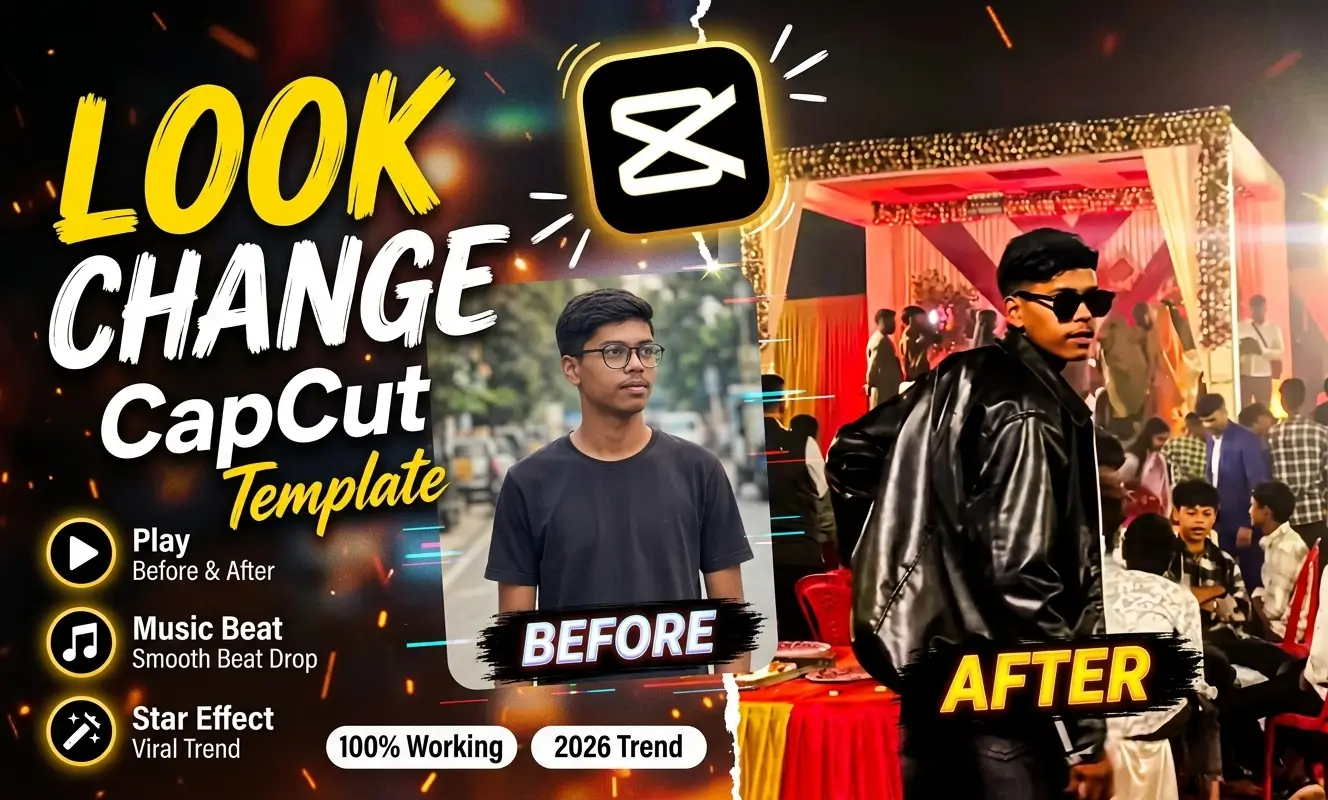
If you spend time scrolling through Instagram Reels or YouTube Shorts, you have definitely noticed those satisfying makeover clips. One moment a creator appears in simple home clothes, and on the very next beat drop, they reveal a sharp outfit or fresh hairstyle.
Friends, creating that clean visual snap used to take hours of manual keyframes and speed ramping. Today, you can achieve the exact same result on your smartphone in just a couple of minutes by using a Look Change CapCut Template.
Whether you want to showcase a festive traditional outfit, a gym glow up, or a fresh haircut, a ready made editing structure handles all the heavy lifting. You simply pick your favorite clips, drop them into the timeline slots, and let the pre built transitions match the audio rhythm. In this guide, I will walk you through how this editing style works, how to shoot clean clips for it, and how to fix common template issues in India. If Bhojpuri song reels fascinate you , than Rangdari Bhojpuri CapCut Template should get a click .
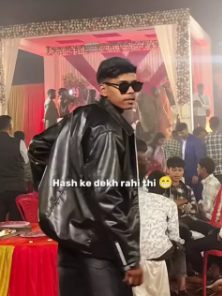
Understanding the Look Change Editing Style
A Look Change CapCut Template is a pre designed project layout created inside the CapCut mobile app by experienced editors. Instead of building transitions, velocity curves, and color filters from scratch, you borrow an existing editing timeline and swap in your own photos or videos.
These templates rely on two core elements: beat synchronization and visual contrast. The timeline begins with a calm, everyday moment and builds tension right up to a musical drop or sound effect. Right at that peak, a flash, zoom, or smooth blur transition switches the screen to your upgraded appearance.
Because the timing is already locked in by the template creator, your before and after look edit CapCut project feels punchy and intentional. It works great for fashion creators, daily vloggers, and anyone who wants a polished CapCut transformation template without spending an evening adjusting tiny sliders.
How to Prepare Your Clips Before Editing
Many beginners jump straight into an outfit transition CapCut template without checking their raw footage first. Even the best template cannot save a blurry clip or an awkward camera angle. Taking two minutes to plan your shots makes the final reveal look ten times cleaner.
Match Your Camera Angle and Distance
Try to keep your phone at the exact same height and distance in both your before and after clips. If your face sits near the center of the frame in the first clip, place your face in that exact same spot for the second clip. When your eye line stays steady across the cut, the viewer feels a seamless visual snap instead of a jarring jump.
Check Your Lighting and Focus
Avoid shooting your reveal clip in a dark room where the camera sensor adds heavy grain. Natural window light or a simple ring light keeps skin tones clear and shows off fabric textures, jewelry, and hair details. Make sure your camera lens is wiped clean so bright highlights do not smear across the screen.
Pair the Right Energy With the Beat
Think of your video as a tiny two part story. Your opening clip should feel relaxed, candid, or understated, such as walking toward the camera in casual wear. Your second clip should bring confident posture, a subtle smile, or a sharp turn so it matches the energy of a beat sync transition CapCut edit.
Step by Step Guide to Using the Template
Once your clips are ready in your phone gallery, using a style change Reels template CapCut layout takes only a few taps. Follow this simple workflow on your Android or iOS device:
- Preview the Template First: Open the template link in your mobile browser and watch the sample preview from start to finish. Pay attention to how many media slots it needs and whether those slots work better with short video clips or still photos.
- Launch in the Official App: Tap the Use Template button on the preview screen. Your device will automatically open the project inside the official CapCut mobile video editor.
- Select Your Before and After Media: Browse your phone gallery and tap the exact number of photos or video clips shown at the bottom of the screen. Place your casual or unstyled shot in the opening slot and your dressed up shot in the reveal slot.
- Adjust Framing Inside Each Slot: Tap any clip in the timeline and select Edit or Crop if your head or outfit looks slightly cut off. Pinch and drag the frame until your subject sits comfortably inside the vertical 9:16 canvas.
- Check the Transition Timing: Hit play and watch the exact frame where the look switches. If a video clip moves too slowly before the beat drop, trim the start of that clip so the action lands right on the transition.
- Export in High Resolution: Tap Export in the top corner. Choose 1080p resolution at 60fps for smooth motion, and save the final video to your device without the watermark .
Creative Transformation Ideas for Indian Creators
You do not need a studio setup or a massive wardrobe to pull off a great glow up CapCut template video. Here are four practical ideas that consistently perform well on Indian Instagram Reels and Shorts:
- Casual Wear to Festive Ethnic: Start in a plain t shirt or home kurta, then transition into a sherwani, saree, lehenga, or tailored blazer during wedding season or festive celebrations.
- Grooming and Haircut Reveal: Film a quick clip right before sitting in the barber chair or salon seat, then cut to the fresh fade, beard trim, or styled hair outside in natural daylight.
- Gym Pump and Fitness Progress: Pair an early morning hoodie clip with a post workout mirror shot using a slow motion transition CapCut template to highlight posture and confidence.
- Travel and Location Switch: Begin your clip indoors while packing a bag, and transition straight into a scenic mountain, beach, or heritage backdrop in your travel outfit.
Fixing Common CapCut Template Problems in India
Because CapCut faces regional access restrictions in India, creators occasionally run into loading hiccups when opening external template links. Here is how you can solve the most common issues quickly:
Template Page Shows Unavailable or Blank Screen
If clicking a template link shows a network error or states that the template is unavailable in your region, check your connection first. Always make sure the CapCut app is already open in the background before clicking the link from your browser.
Clips Look Cropped or Zoomed In
Most trending CapCut templates for Reels and TikTok are built in a 9:16 vertical aspect ratio. If you drop a horizontal landscape photo into a vertical slot, the app will automatically zoom in and crop the sides. Stick to vertical photos and videos shot with your phone held upright.
Audio Feels Out of Sync
Sometimes a template plays smoothly in preview, but the beat feels slightly delayed on your phone. Close background apps to free up device memory, clear the CapCut app cache inside settings, and export the file before judging the final sync.
Frequently Asked Questions
Can I make a look change video using only photos?
Yes, most templates accept both still photos and short video clips. However, combining a moving video clip for the opening shot with a crisp photo or slow motion clip for the final reveal usually creates a much stronger fashion reel editing template CapCut result.
Is CapCut free to use for look change templates?
The core app and thousands of community templates are completely free to use. A few specific templates include Pro effects, transitions, or filters marked with a small badge.
What video quality should I choose before uploading to Instagram Reels?
Export your finished project at 1080p resolution and 60fps with a standard or high bit rate. Avoid exporting in 4K unless your phone and internet connection handle large uploads easily, because Instagram automatically compresses oversized files and can soften fine details.
How can I make my transition look even smoother?
Try adding a natural physical movement right before the cut, such as covering the camera lens with your hand, snapping your fingers, or turning your head to the side. When that motion lines up with the template’s built in flash or zoom effect, viewers barely notice where the first clip ends and the second begins.

Renu Mishra Roy is the founder and editor of Roy Editors. She writes about trending CapCut templates, VN codes, and AI photo editing, testing each template herself before publishing so readers get steps that actually work. Her guides focus on helping creators make clean, viral-style Reels and Shorts without wasting time on complicated editing.

1 thought on “Look Change CapCut Template: Smooth Reels & Shorts Guide”