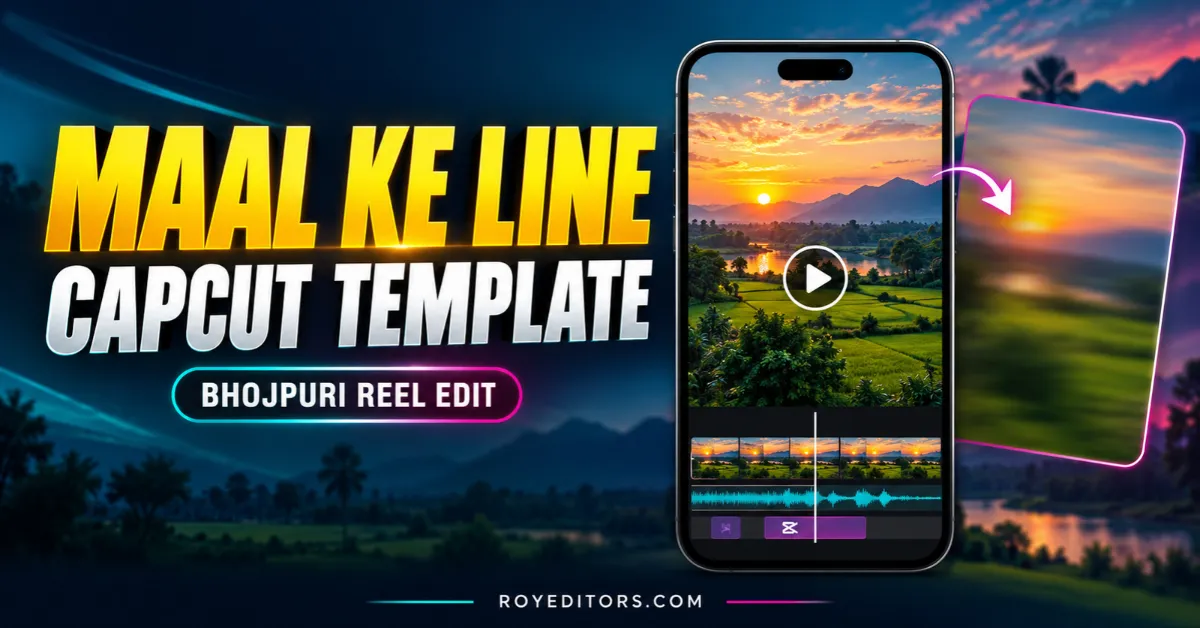
Want to make a reel using the Maal ke Line song? Open the linked CapCut template below and watch its preview before choosing your footage. Check that it uses the song section and editing style you want.
This page provides the template link and advice for selecting and positioning your footage. The instructions below cover the general CapCut workflow; the linked project’s exact media requirements and export conditions have not yet been verified.
For another Bhojpuri editing idea, explore our Pandey Ji Ka Beta Hu CapCut Template guide.
Maal ke Line CapCut Template Link

How to Add Your Footage in CapCut
1. Open and Preview the Template
Tap the template button on your phone. If the link opens a compatible project in CapCut, watch the complete preview with sound.
Listen to the exact song section before recording a lip-sync performance. Check whether the project requests photos, videos, or a combination of both.
2. Select Footage That Fits the Preview
Add the media requested by the template. For a lip-sync video, choose a take that matches the audio section used in the project.
Keep some space around your face when recording. This gives you room to reposition the footage if the template crops or zooms into the image.
3. Adjust the Clip Selection
If CapCut allows you to choose a section of your recording, move the selection until your intended expression or movement appears at the right moment.
Watch the opening and any transitions carefully. If your face is cropped or your main movement happens too early, reposition the footage or select a different part of the recording.
4. Check the Audio and Export
Play the complete edit with sound. If your original recording is audible alongside the template’s music, check whether you can mute it.
Review the crop, timing, and any editable text. Check the export screen for payment requirements, then save the video using an available setting suitable for your footage.
Watch the saved file before posting it to make sure the audio and picture match.
If you want a different music edit afterward, see our Gata Only CapCut Template guide.
If the Template Link Does Not Open
If the link opens an app-store page even though CapCut is installed, return to this page and try the button from your phone’s regular browser.
If CapCut reports that the project is unavailable, the link may no longer provide access for your device, account, or region. Repeatedly opening the same link may not resolve that restriction.

Renu Mishra Roy is the founder and editor of Roy Editors. She writes about trending CapCut templates, VN codes, and AI photo editing, testing each template herself before publishing so readers get steps that actually work. Her guides focus on helping creators make clean, viral-style Reels and Shorts without wasting time on complicated editing.