Hello friends!
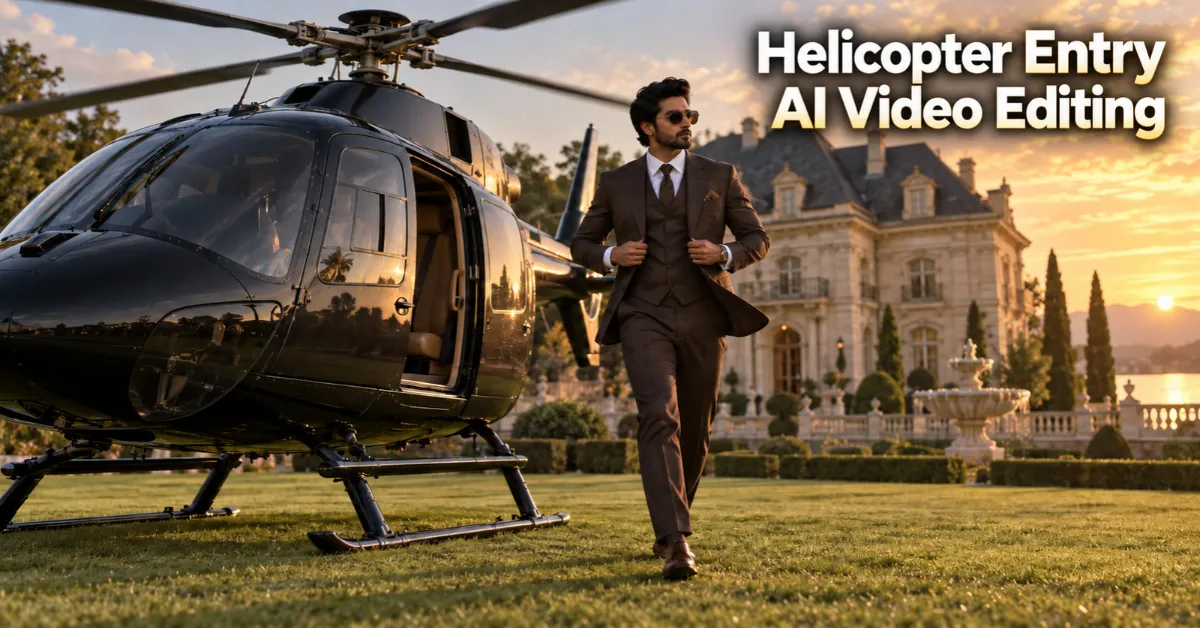
Have you seen the viral helicopter entry videos on Instagram? A person steps out of a helicopter like a movie hero. The camera moves slowly. The clothes and background look cinematic. Even the face appears surprisingly realistic.
The good news is that you do not need a helicopter or professional editing software to create this effect. You can make it with one clear photo and a detailed AI prompt.
In this guide, you will learn the complete Helicopter Entry AI Video Editing process. We have also provided a ready-to-copy Flow AI prompt. Follow the steps carefully and create your own cinematic entry video.
Quick answer: Upload a clear full-body photo to Flow AI, choose an image-to-video or frames-to-video option, paste the prompt provided below and generate the clip. Use a vertical 9:16 format if you plan to post it as an Instagram Reel or YouTube Short.
What Is Helicopter Entry AI Video Editing?
Helicopter Entry AI Video Editing is a viral photo-to-video trend. AI transforms a still photograph into a short cinematic action scene.
In this version, a stylish young man steps out of a dark helicopter. He adjusts his jacket and walks forward confidently. The camera captures the entry in slow motion. Wind from the helicopter moves his clothes and the surrounding grass.
The scene looks like an introduction shot from an action film. However, it is generated digitally. You do not need to record the scene yourself or add every effect manually.
Creators are using this type of edit for:
- Instagram Reels
- YouTube Shorts
- Facebook videos
- Attitude status videos
- Cinematic profile edits
- AI editing experiments
If you enjoy making creative images before turning them into videos, explore our AI Photo Editing guides for more prompt ideas.
What You Need to Create the Video
You only need a few things before starting:
- A clear photograph of yourself
- A Google account
- Access to Flow AI or another compatible image-to-video tool
- The Helicopter Entry AI video prompt
- A stable internet connection
AI video generation may require credits or a supported plan. Access and available models can also vary by account and region.
How to Choose the Best Reference Photo
Your source image has a major effect on the final video. A poor-quality image can produce an unnatural face or body movement.
Use a photograph in which:
- Your face is sharp and clearly visible.
- Your full or three-quarter body can be seen.
- You are standing naturally.
- Your arms are not covering your face.
- The lighting is even.
- The image is not heavily filtered.
- No other person is standing too close to you.
A front-facing or slightly side-facing pose usually works well. Avoid sunglasses, extreme angles, dark shadows and blurred screenshots.
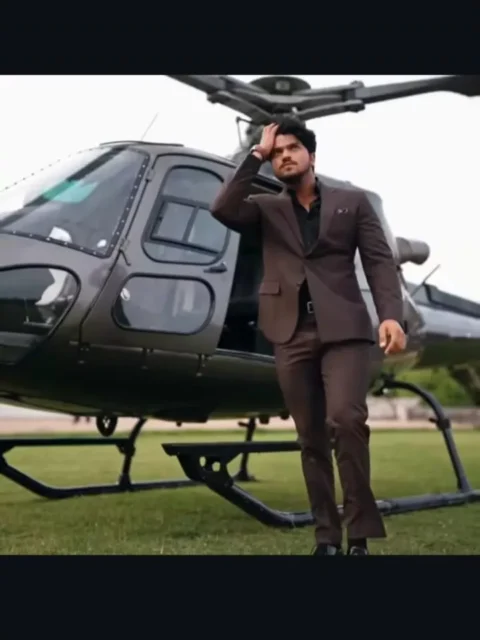
The person in the original photo does not need to be standing beside a helicopter. The prompt will create the new environment. Your photo mainly acts as an identity reference.
Viral Helicopter Entry Flow AI Prompt
Copy the complete prompt below. You can change the suit colour, location or camera style if you want a different result.
How to Make the Helicopter Entry AI Video
The exact names of the controls may change when Flow is updated. The basic process remains simple.
Step 1: Open Flow AI
Open the official Flow website and sign in with your Google account. Use the official service only. Avoid unknown websites that ask for unnecessary personal information.
Step 2: Create a New Project
Select the option to create a new project. Give the project a simple name such as “Helicopter Entry Video.”
Step 3: Select the Video Generation Mode
Choose the option that lets you create a video from an image or starting frame. Depending on the version available to you, it may appear as Frames to Video, Image to Video or a similar option.
Step 4: Upload Your Reference Image
Tap the upload or plus icon. Select the clear photograph you prepared earlier. Wait until the image is uploaded completely.
Use only a photograph that belongs to you or one you have permission to edit.
Step 5: Paste the Prompt
Copy the Helicopter Entry AI video prompt from this article. Paste it into the prompt box.
Read it once before generating. You can replace “dark-brown three-piece suit” with black, navy blue or white. You can also replace the European-style mansion with a luxury hotel, farmhouse or film set.
Step 6: Choose the Correct Format
Select a vertical format if the tool provides aspect-ratio controls. A 9:16 video is ideal for Reels and Shorts.
If vertical generation is unavailable, create the clip in the offered ratio and crop it carefully during final editing. Keep your face and body near the centre so that important details are not removed.
Step 7: Generate the Video
Click Generate and wait for the tool to process your image and instructions. Generation time may vary with traffic, model availability and account limits.
Step 8: Review the Result
Watch the complete clip before downloading it. Check:
- Face consistency
- Hands and feet
- Walking movement
- Helicopter blades
- Jacket movement
- Shadows and reflections
- Background stability
If one detail looks wrong, make a small change to the prompt and generate another version. Changing too many instructions at once can make it difficult to identify the problem.
Step 9: Download and Finish the Reel
Download the best version. You can then add music, text or sound effects in your preferred video editor.
For a faster ready-made editing method, you can also see the Pandey Ji Ka Beta Hu CapCut Template. For a softer cinematic style, try the Raanjhana Ve CapCut Template.
How to Improve Face Consistency
AI tools may change facial details during motion. These steps can improve the result:
- Upload a recent, high-resolution photo.
- Keep the entire face visible.
- Use a natural expression.
- Avoid beauty filters and strong colour effects.
- Include identity-preservation instructions in the prompt.
- Keep the camera movement smooth rather than extremely fast.
- Generate several versions and select the most natural one.
No AI tool can guarantee an exact face match in every frame. Always inspect the generated clip before posting it.
Optional Prompt Variations
You can keep the same basic concept and change the setting.
Black-Suit Night Entry
Replace the daytime lawn with a luxury hotel entrance at night. Use a black suit, warm building lights, wet pavement reflections and subtle fog.
South Indian Movie-Style Entry
Use a rural film-set background, warm sunlight, slow-motion dust and a powerful low camera angle. Keep the action original instead of asking AI to copy a particular actor or protected movie scene.
Farmhouse Helicopter Entry
Place the helicopter beside a large farmhouse with open fields in the background. Use natural afternoon light and softer camera movement.
VIP Business Arrival
Show the character stepping out in a navy-blue suit while security staff stand at a respectful distance. Add a modern office building and premium vehicles in the background.
Tips to Make the Video Look More Realistic
Keep the Scene Simple
Too many people, vehicles and camera movements can confuse the AI. One character and one clear action usually produce a cleaner result.
Describe Movement Clearly
Do not write only “make him walk.” Explain the order: he steps down, adjusts his jacket and walks towards the camera.
Avoid Excessive Slow Motion
Slow motion can add cinematic style, but extremely slow movement may cause distorted hands or feet. Ask for subtle or controlled slow motion.
Check the Helicopter Rotor
Rotor blades can appear bent or inconsistent. Regenerate the clip if the movement looks unsafe or unrealistic.
Add Music After Generation
Generate a clean visual first. Add your preferred attitude song or cinematic sound later. This gives you better control over beat timing and volume.
Common Problems and Quick Fixes
The face changes during the video
Use a sharper reference image. Repeat the identity instructions and reduce fast head movement.
The walk looks unnatural
Change the prompt to “slow, controlled and anatomically natural walking movement.” A shorter walking sequence may also help.
Hands or feet are distorted
Simplify the action. Ask the character to adjust the jacket briefly and keep both hands visible.
The helicopter looks too small
Add “full-sized realistic helicopter with accurate scale relative to the character.”
The video is not vertical
Choose 9:16 before generation when available. Otherwise, place the main character in the centre and crop the clip in a video editor.
The result looks artificial
Remove exaggerated words and request natural skin, realistic shadows, physically accurate motion and subtle camera movement.
Is This AI Video Safe to Share?
Yes, you can share a creative AI video made with your own image. However, use AI responsibly.
- Do not use another person’s face without permission.
- Do not impersonate a celebrity or public figure.
- Do not present an AI scene as evidence of a real event.
- Avoid official logos, uniforms or misleading claims.
- Label the post as AI-generated when viewers could mistake it for real footage.
- Follow the rules of the AI tool and social platform you use.
Frequently Asked Questions
Can I create the helicopter entry video on a phone?
Yes. You can use Flow through a supported mobile browser if the required features are available for your account. A computer may provide a more comfortable editing experience.
Is Helicopter Entry AI Video Editing free?
Availability depends on the service, account and current credit system. Some users may receive limited credits, while certain models or features may require a paid plan.
Which photo gives the best result?
A clear standing photo with visible facial details and good lighting usually works best. A three-quarter or full-body image helps the AI create a more natural walking scene.
Can I change the clothes in the prompt?
Yes. You can request a black suit, traditional kurta, casual outfit or another style. Keep the clothing description consistent throughout the prompt.
Why does my face look different?
The reference may be blurred, filtered or captured from an extreme angle. Upload a clearer image and strengthen the identity-preservation instructions.
What video ratio should I use for Instagram Reels?
Use a vertical 9:16 ratio. It fills the mobile screen and works well for Instagram Reels, YouTube Shorts and Facebook Reels.
Conclusion
The Helicopter Entry AI Video Editing trend gives you a movie-style entrance without complicated manual editing. You only need a clear photograph, a detailed Flow AI prompt and a little patience.
Start with the prompt shared above. Generate more than one version and check the face, hands, movement and helicopter carefully. Once you get a natural result, add suitable music and upload it as a Reel or Short.
Try the prompt with your own style. Change the suit, background or lighting while keeping the action simple. Your next viral cinematic entry may be only one prompt away.

Renu Mishra Roy is the founder and editor of Roy Editors. She writes about trending CapCut templates, VN codes, and AI photo editing, testing each template herself before publishing so readers get steps that actually work. Her guides focus on helping creators make clean, viral-style Reels and Shorts without wasting time on complicated editing.